Teachers Management
The Teachers Management module allows school administrators to create, manage, and monitor teacher accounts within PhilBlocks.
Using this section, you can:
- View all teachers
- Add new teachers
- Update teacher information
- Assign subjects and classes
- Manage teacher status
- View teacher profiles
Main benefits
- Keep teacher records organized
- Manage assignments and profiles
- Monitor active/inactive status
Best for
- HR and admin staff
- Academic coordinators
- School managers
Information Displayed
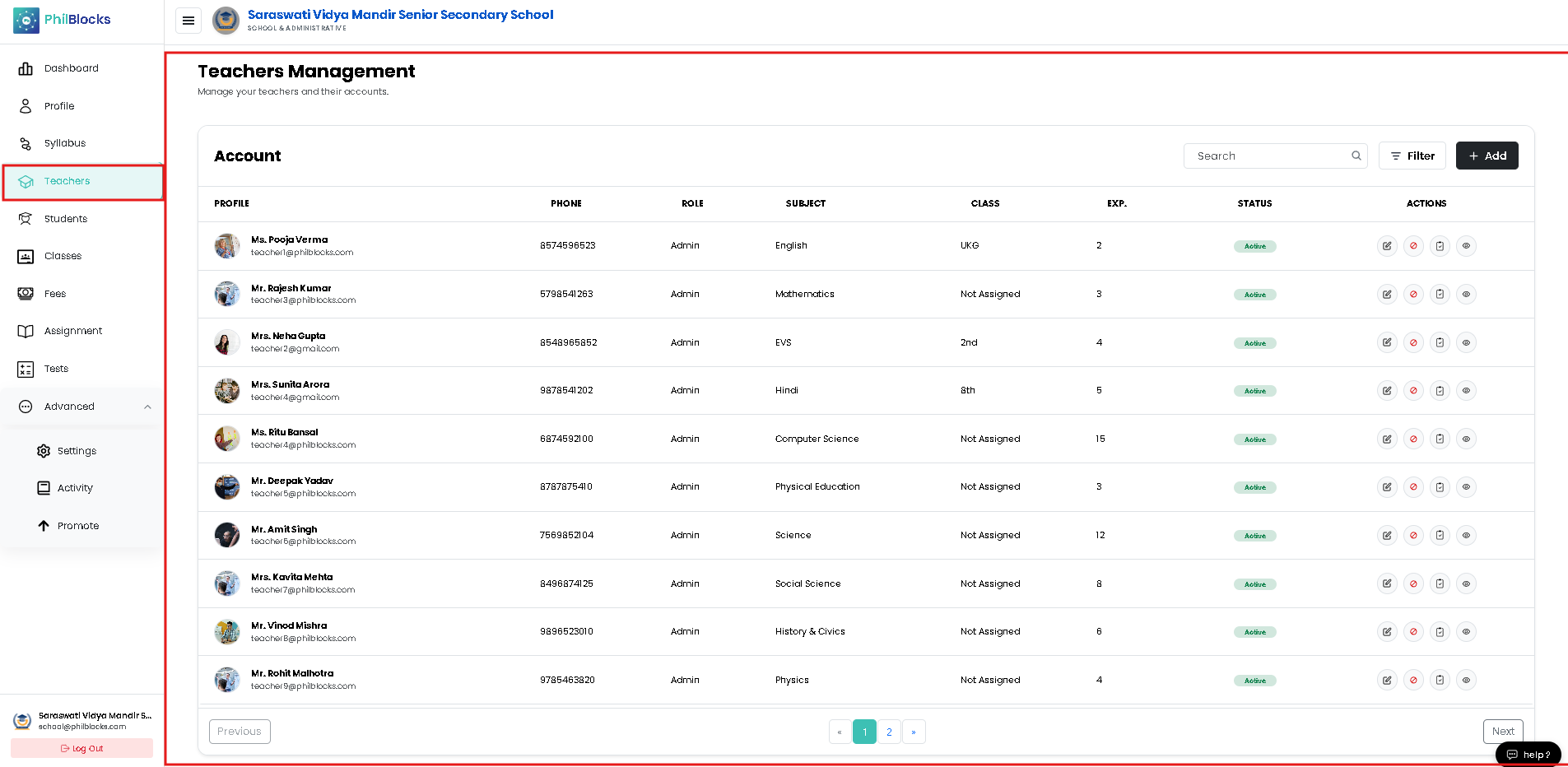
| Field | Description |
|---|---|
| Profile | Teacher photo, name, and email |
| Phone | Contact number |
| Role | Teacher role |
| Subject | Assigned subject |
| Class | Assigned class |
| Experience | Years of experience |
| Status | Active or Inactive |
| Actions | Available management options |
Search Teachers
Use the search box at the top of the page to quickly find a teacher.
Example Searches
- Teacher Name
- Email Address
- Subject
Filter Teachers
Click the Filter button to narrow the list based on specific criteria.
Examples:
- Subject
- Class
- Status
- Experience
Teacher Status
Each teacher account contains a status indicator.
Active
The teacher can:
- Log in
- Access assigned classes
- Manage attendance
- Create assignments
Inactive
The teacher cannot access the platform until reactivated.
Teacher Actions
Each teacher row includes action buttons.
View Teacher
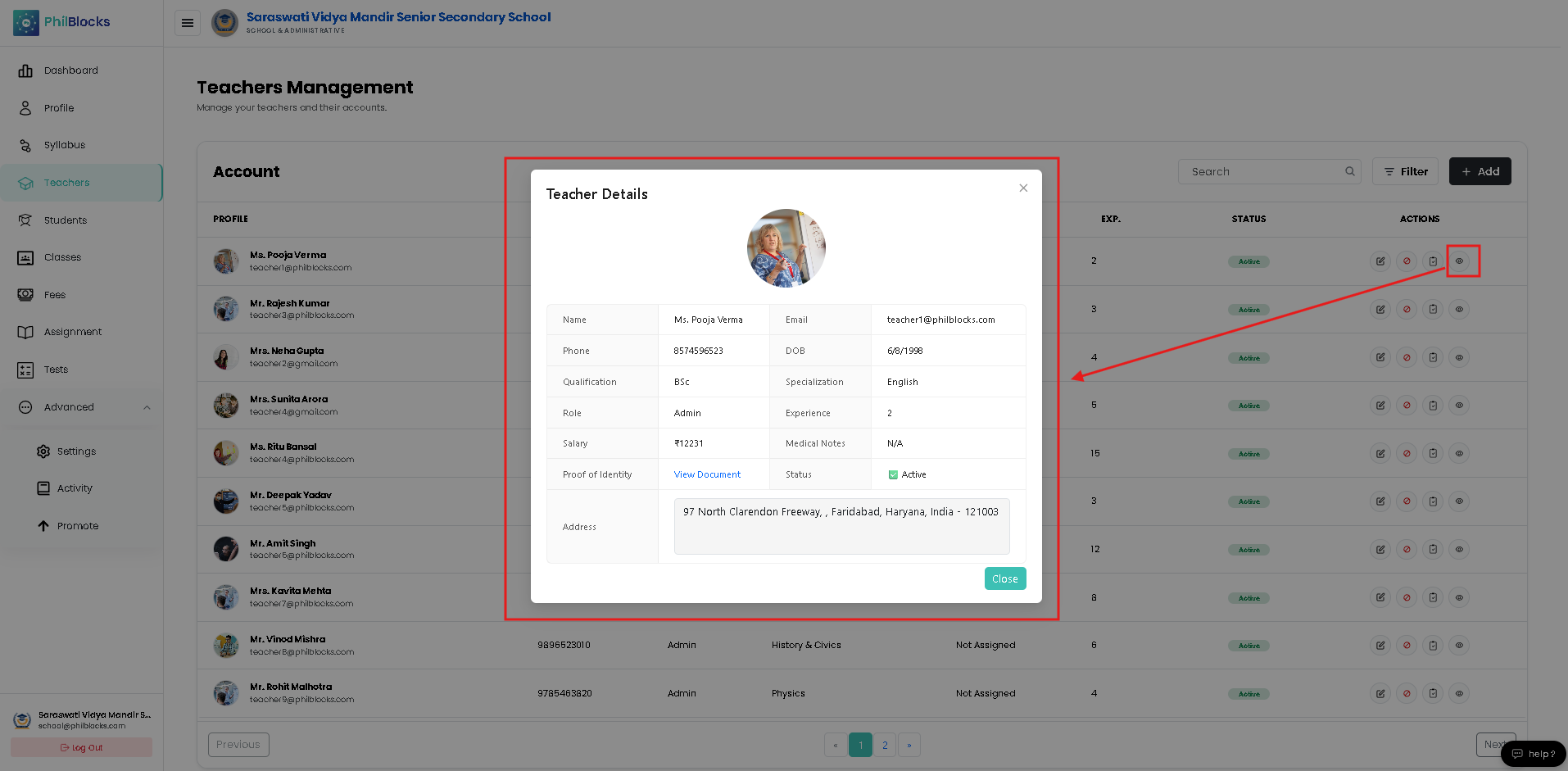 View complete teacher details including:
- Personal information
- Subject assignments
- Experience details
- Contact information
Edit Teacher
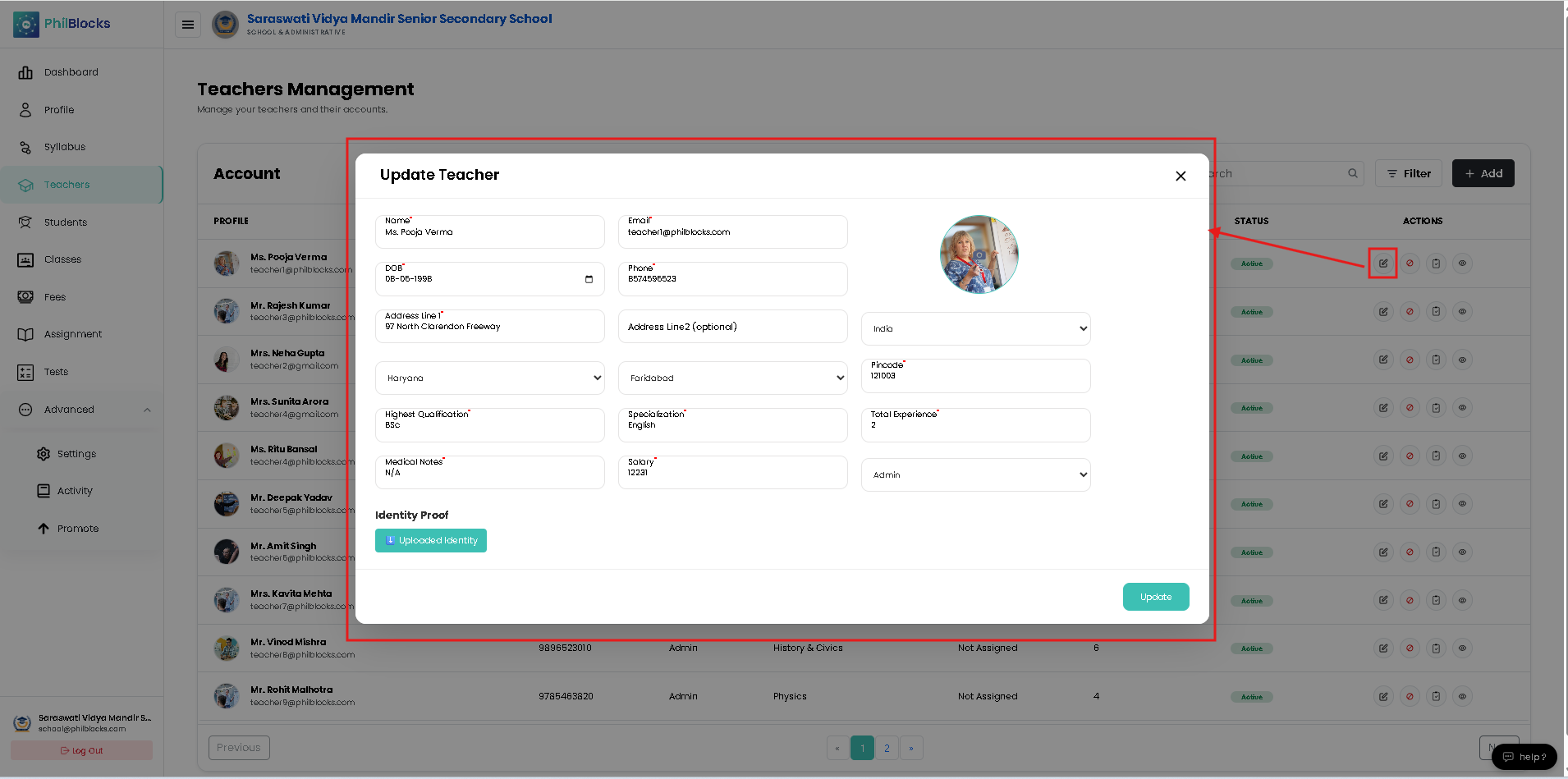 Update teacher information such as:
- Name
- Phone Number
- Address
- Subject
- Experience
- Qualifications
Disable Teacher
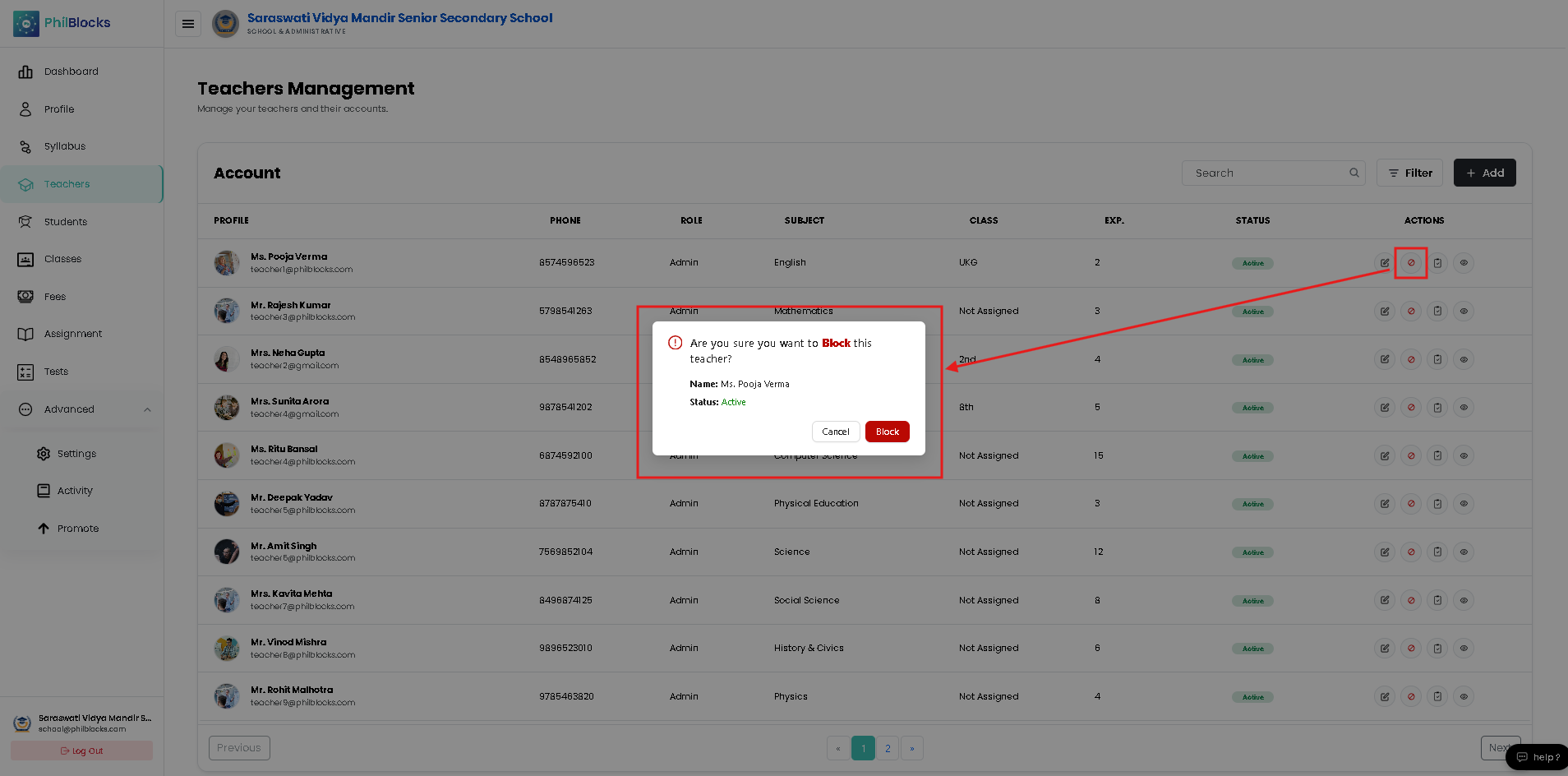 Temporarily deactivate a teacher account.
Use this option when:
- Teacher is on leave
- Teacher is no longer active
- Access needs to be restricted
Adding a New Teacher
To create a teacher account:
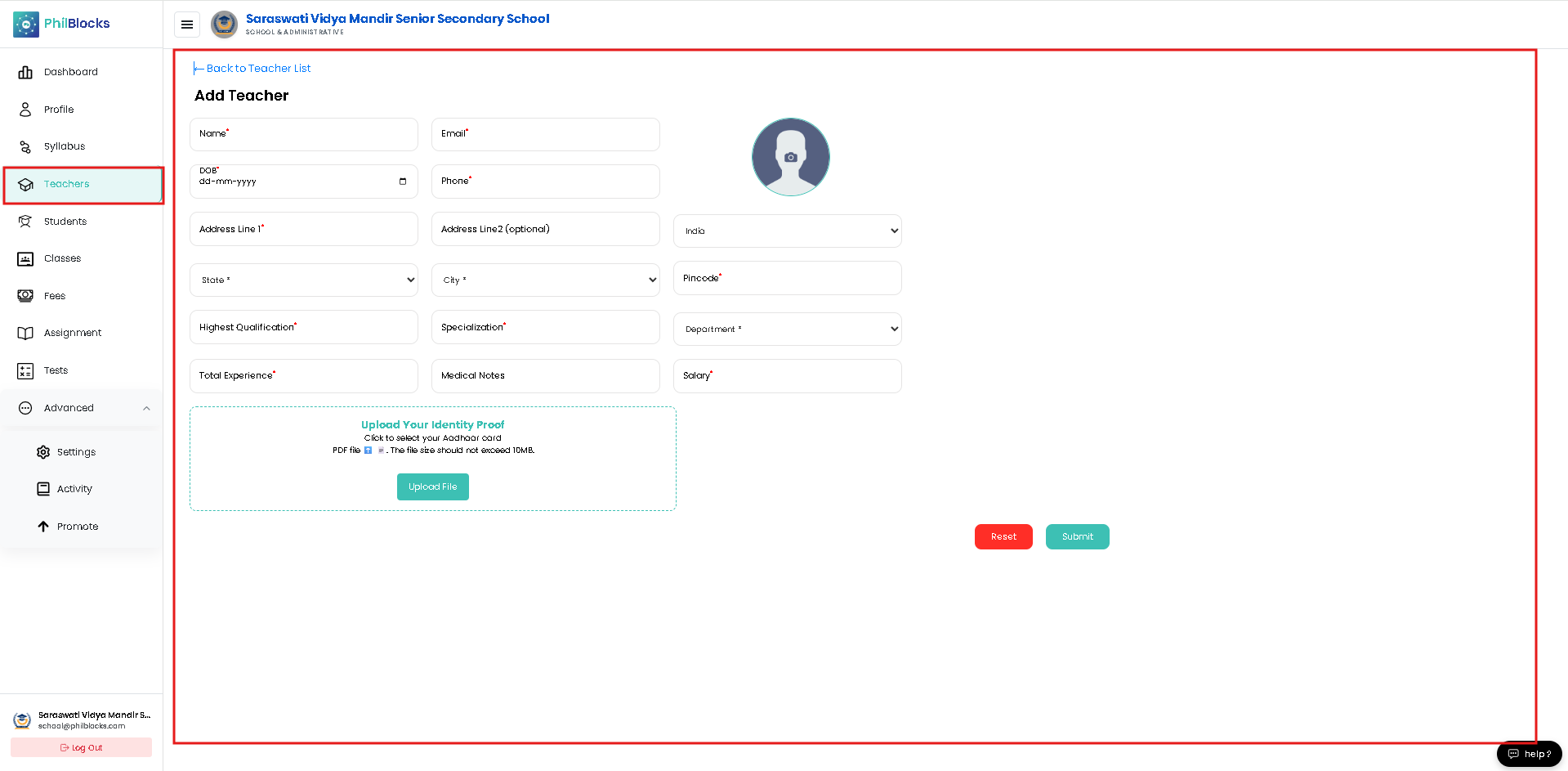
Step 1
Click the Add button located at the top-right corner of the Teachers Management page.
The Add Teacher form will open.
Teacher Information Form
Complete all required fields marked with (*).
Basic Information
Name
Enter the teacher's full name.
Example:
Pooja Verma
Email Address
Enter a valid email address.
Example:
teacher@school.com
This email will be used for account access and notifications.
Date of Birth (DOB)
Select the teacher's date of birth.
Example:
15-08-1990
Phone Number
Enter the teacher's contact number.
Example:
9876543210
Profile Photo
Upload a teacher photograph.
Recommended:
- Passport-size photo
- Clear image
- Recent photograph
Address Information
Address Line 1
Enter the primary address.
Example:
123 Main Street
Address Line 2 (Optional)
Additional address information.
Example:
Near City Hospital
Country
Select the country.
Example:
India
State
Select the state.
Example:
Uttar Pradesh
City
Enter the city name.
Example:
Lucknow
Pincode
Enter the postal code.
Example:
226001
Professional Information
Highest Qualification
Enter the teacher's highest educational qualification.
Examples:
- B.Ed.
- M.Ed.
- M.Sc.
- M.A.
- Ph.D.
Specialization
Enter the teacher's subject specialization.
Examples:
- Mathematics
- English
- Science
- Computer Science
Department
Select the appropriate department.
Examples:
- Primary
- Secondary
- Senior Secondary
Total Experience
Enter total teaching experience in years.
Example:
5 Years
Medical Notes
Enter any relevant medical information if required.
Examples:
- Allergies
- Emergency considerations
- Health-related notes
This field is optional.
Salary
Enter the teacher's salary amount.
Example:
₹35,000
Identity Proof Upload
To verify teacher information, upload an identity document.
Supported Document
Aadhaar Card (PDF)
Requirements:
- PDF format only
- Maximum file size: 10 MB
Upload Steps
Step 1
Click Upload File.
Step 2
Select the Aadhaar Card PDF from your device.
Step 3
Wait for the upload to complete.
Step 4
Verify that the file is attached successfully.
Form Actions
Submit
Click Submit to save the teacher record.
After successful submission:
- Teacher account is created
- Teacher appears in the Teachers list
- Login access can be provided
Reset
Click Reset to clear all entered information.
Use this option if you need to start over.
Best Practices
✅ Use the teacher's official email address
✅ Upload a clear profile photograph
✅ Verify phone numbers before saving
✅ Ensure qualifications are accurate
✅ Upload valid identity documents
✅ Keep contact information updated
Frequently Asked Questions
Who can add teachers?
School administrators and authorized users.
Is profile photo mandatory?
It is recommended for easier identification.
Can teacher details be updated later?
Yes. Use the Edit option from the Teachers list.
Can a teacher be temporarily disabled?
Yes. Use the Disable action to restrict access.
What identity proof can be uploaded?
Currently, Aadhaar Card PDF files are supported.
Related Documentation
- Dashboard Overview
- Profile Management
- Student Management
- Class Management
- Attendance Management
- Assignment Management
Congratulations! 🎉
You now know how to manage teacher accounts, update teacher information, and add new teachers using the Teachers Management module.