Activity Log
The Activity Log module tracks system events, user actions, and audit activity across the school management platform.
This page explains how to read event history, refresh logs, and understand key event details.
What this page shows
- Recent actions and system events
- User activity details
- Audit and review data
Who uses it
- School administrators
- Auditors
- IT support
Activity Log Overview
The Activity Log page provides a chronological list of recent actions performed in the system.
Each log entry typically includes:
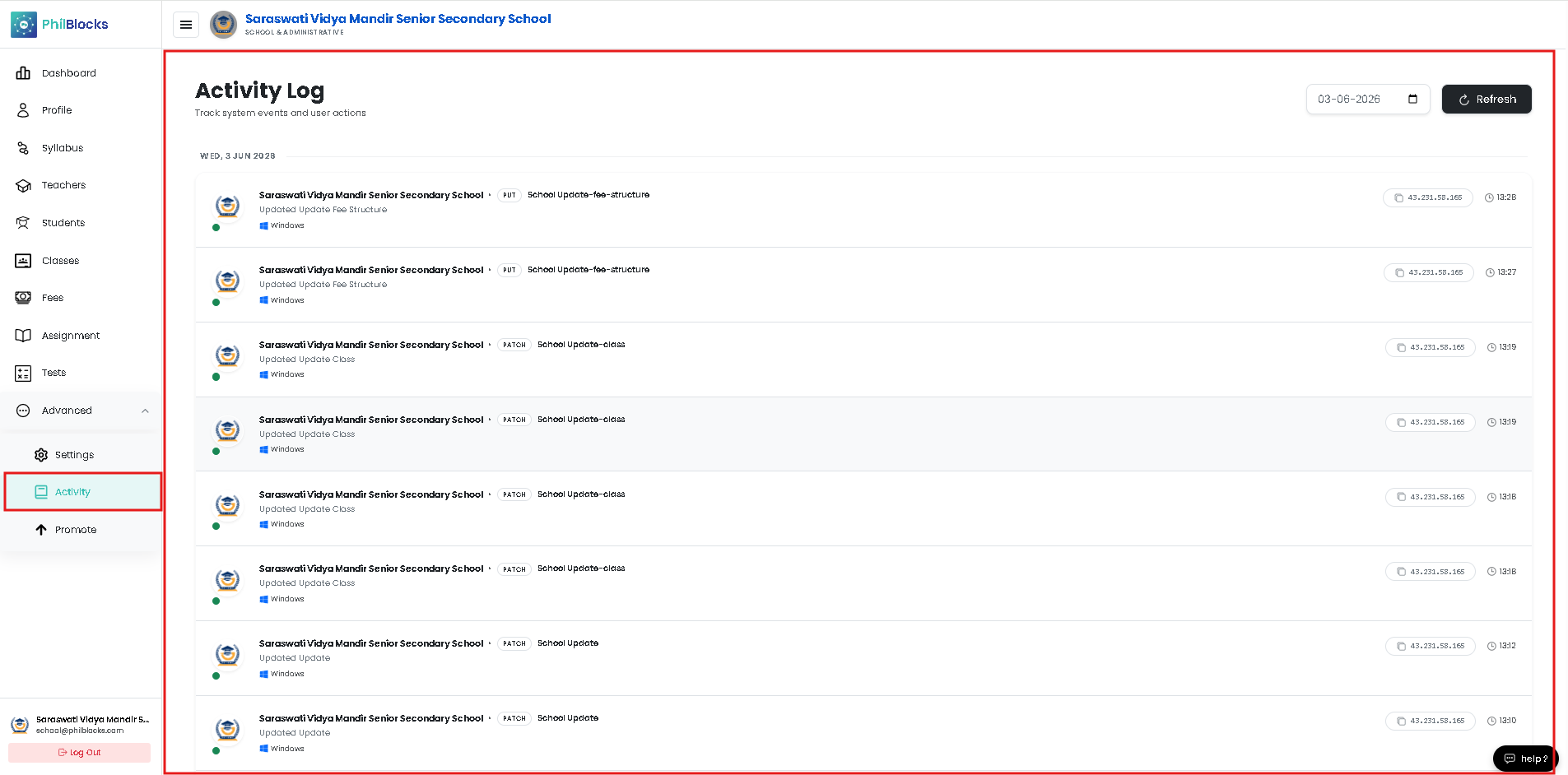
- The school or user responsible for the action
- The event type (such as POST, PATCH, DELETE)
- The affected module or item
- A brief event description
- The user platform or browser information
- The event timestamp
This helps administrators audit changes and track system activity.
Reading Log Entries
Log entries are usually grouped by date, with the most recent actions shown first.
Each entry often shows:
- the school name or entity
- action type label (example: DELETE, PATCH, POST)
- the affected record description
- the user device or operating system
- the exact time of the event
This format makes it easy to review who changed what and when.
Refreshing the Log
Use the Refresh button to reload the latest events.
This ensures the activity log stays current and displays newly recorded actions.
Date Selection
Many activity logs offer a date picker to filter events by a specific day.
Choose the date to view activity for that period only.
Common Activity Types
Examples of recorded actions include:
- POST — created a new record or rule
- PATCH — updated an existing setting or field
- DELETE — removed a record or subject
- LOGIN — user signed in
- LOGOUT — user signed out
Using the Activity Log for Audits
The activity log is valuable for:
- tracking configuration changes
- confirming user actions
- identifying unexpected or unauthorized updates
- troubleshooting recent system behavior
Review the log regularly to keep the system secure and transparent.
Best Practices
✅ Refresh the log after major changes
✅ Check timestamps for suspicious activity
✅ Use date filters to focus on a single day
✅ Confirm the event description matches the intended action
✅ Keep audit records for compliance and review
Frequently Asked Questions
Who can view the activity log?
Authorized administrators and audit users can view the activity log.
What does PATCH mean?
PATCH indicates an update or modification to an existing record.
What should I do if I see an unexpected action?
Investigate the event details, verify the user, and contact support if needed.
Can I filter activity by date?
Yes. Use the date picker to choose the date you want to review.
Related Documentation
- Dashboard Overview
- Attendance Management
- User Management
- Class Management
- Teacher Management
Activity Log Workflow
Open Activity Log
      │
      ▼
Select Date (optional)
      │
      ▼
Review Recent Events
      │
      ▼
Refresh Log
      │
      ▼
Investigate or Confirm Actions