Assignments
The Assignments module helps teachers create and manage class assignments and homework with clear due dates, attachments, and student tracking.
This page explains how to view tasks, add new assignments, and use the assignment details view.
What you’ll learn
- How to add and review assignments
- How to search and filter tasks
- How assignment details are displayed
Who this is for
- Teachers
- Academic coordinators
- School administrators
Assignments Overview
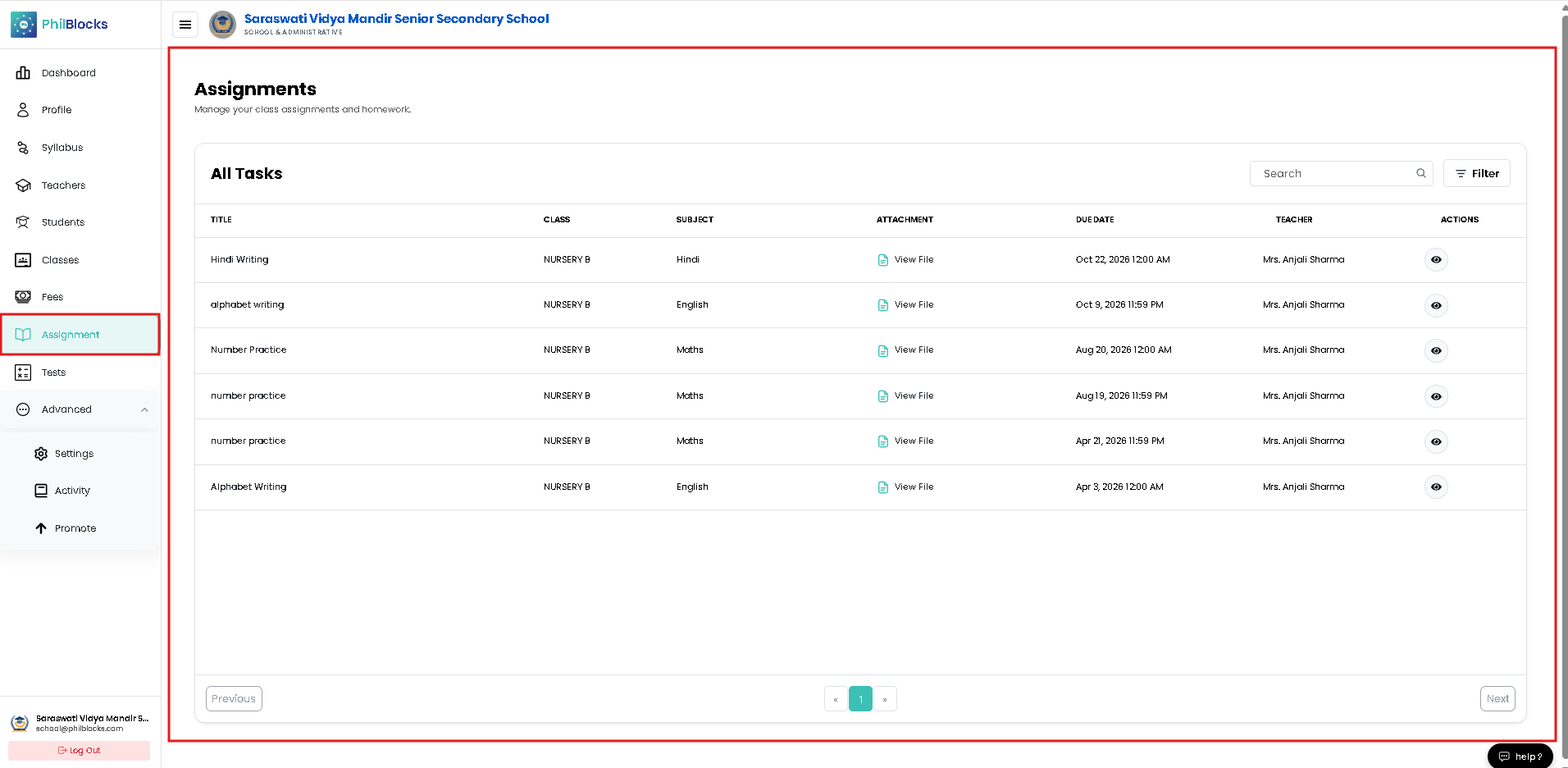
The Assignments page displays all active tasks in a table view.
The table usually includes:
- Title — the assignment name
- Class — class and section information
- Subject — subject or activity name
- Attachment — linked file or worksheet
- Due Date — date when the assignment is due
- Teacher — author or assigned teacher
- Actions — view details or edit assignment
This page is designed for teachers and administrators to quickly review assignment status.
Using the Assignment Table
Use the assignment list to:
- scan all tasks at a glance
- search for specific assignments
- filter by class, subject, or due date
- open assignment details
Each row shows the most important details, with actions available for review.
Search and Filter
The search bar helps locate assignment titles quickly.
The filter options let you narrow tasks by:
- Class
- Section
- Subject
- Teacher
- Due date range
Use search and filters together for faster assignment management.
Adding a New Assignment
To add a new assignment:
- Click the Add button.
- Choose the class and section.
- Enter the assignment title.
- Select the subject.
- Set the due date.
- Attach a file or worksheet, if needed.
- Save the assignment.
Assignment Form Fields
Title
Enter a clear and descriptive name for the assignment.
Example:
Hindi Writing
Class
Choose the class that should receive the assignment.
Example:
NURSERY B
Section
Select the section for the assignment.
Student
When required, choose an individual student or student group.
Subject
Select the subject associated with the assignment.
Amount
If the assignment page includes grading or points, specify the score or weight.
Payment Method
This may not apply to standard assignments but can be used if the assignment is tied to special paid resources.
Fee Month / Reference
These fields are not typical for assignments and can be ignored unless your version uses assignment-related fees.
Notes
Add optional remarks or student instructions.
Assignment Details View
Click an assignment’s View button to open the details modal.
The details view usually includes:
- Assignment title
- Subject and class section
- Teacher name
- Due date
- Description or instructions
- Attachment link for download or preview
This modal provides a quick read-only summary and easy access to the full assignment file.
Typical Assignment Workflow
- Create the assignment.
- Add subject, class, and due date.
- Attach supporting material.
- Save and publish the task.
- Review student submissions or follow-up as needed.
Best Practices
✅ Write clear assignment titles
✅ Include a subject and due date for every task
✅ Attach worksheets or instructions whenever possible
✅ Use search and filters to review assignments quickly
✅ Keep assignment details up to date
Frequently Asked Questions
Who can create assignments?
Teachers and authorized staff members can create assignments.
Can assignment details be edited later?
Yes. Use the edit action to update the title, due date, or attachment.
How do I view an assignment file?
Open the assignment details modal and click the attachment link.
Can I assign homework to a specific section?
Yes. Choose the correct class and section when adding the assignment.
Related Documentation
- Dashboard Overview
- Class Management
- Student Management
- Teacher Management
- Fee Management
Assignment Management Workflow
Create Assignment
      │
      ▼
Select Class and Subject
      │
      ▼
Add Due Date and Attachment
      │
      ▼
Save Assignment
      │
      ▼
Review Details