Login Flow
PhilBlocks provides a secure email-based authentication system that allows users to access their respective dashboards after successful verification.
Supported User Roles
This authentication flow is available for:
- School
- Teacher
- Student
- Parent
Why it’s useful
- Secure login for every role
- Easy email-based verification
- Simple step-by-step access
Core benefits
- Role-based dashboard access
- OTP security
- Fast user onboarding
Authentication Process
Step 1: Enter Registered Email Address
Users begin the login process by entering their registered email address on the login screen.
Actions
- Open the Login page.
- Enter the registered email address.
- Click Continue.
Note: Only registered email addresses can proceed to the verification step.
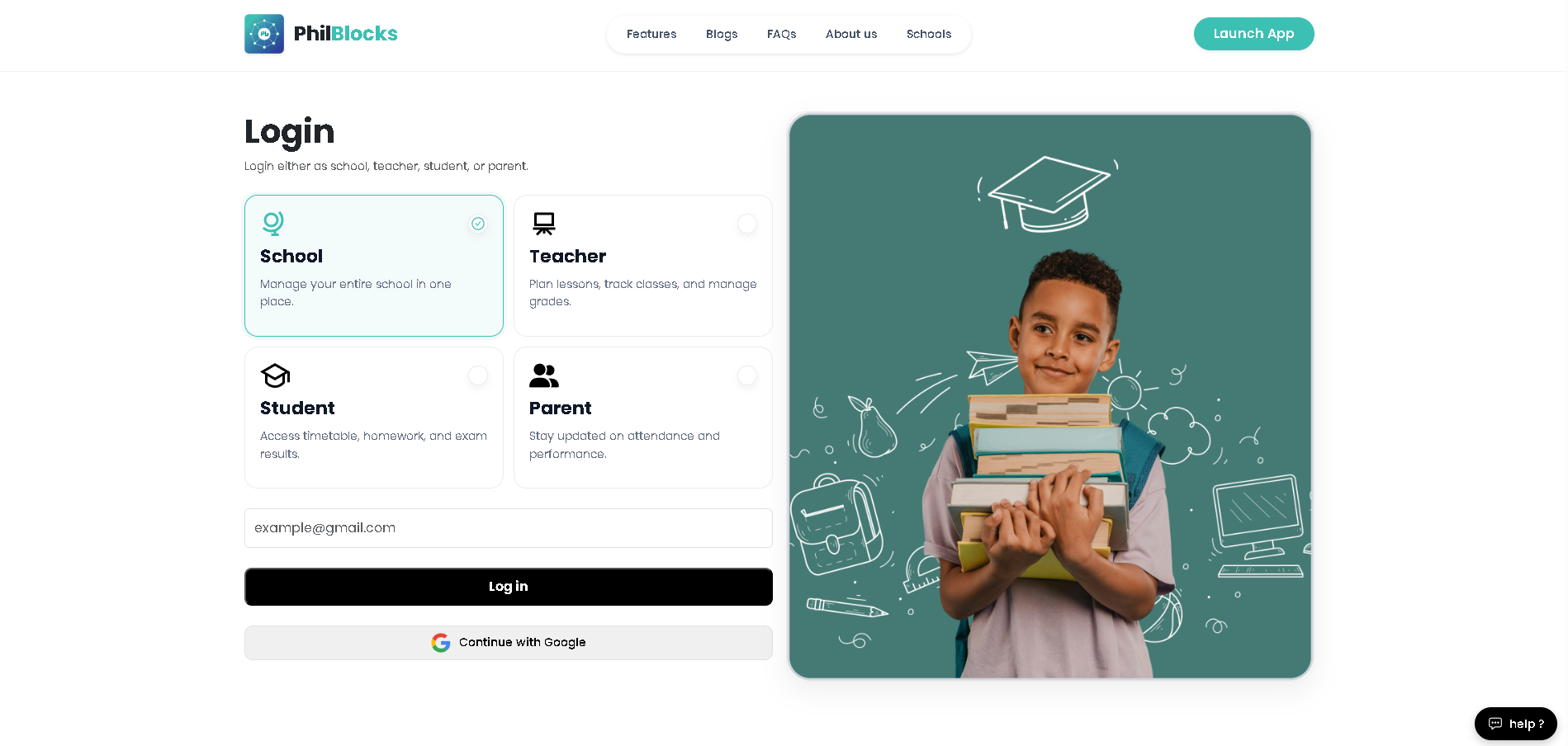
Login screen: select role, enter email, and continue.
Step 2: Verification Code Sent
After submitting the email address, PhilBlocks sends a 6-digit verification code (OTP) to the registered email account.
Actions
- Open your email inbox.
- Locate the verification email from PhilBlocks.
- Copy the 6-digit verification code.
If You Don't Receive the Code
- Check the Spam or Junk folder.
- Wait a few moments and refresh your inbox.
- Use the Resend Code option.
Step 3: Enter Verification Code
Enter the 6-digit verification code received via email.
Actions
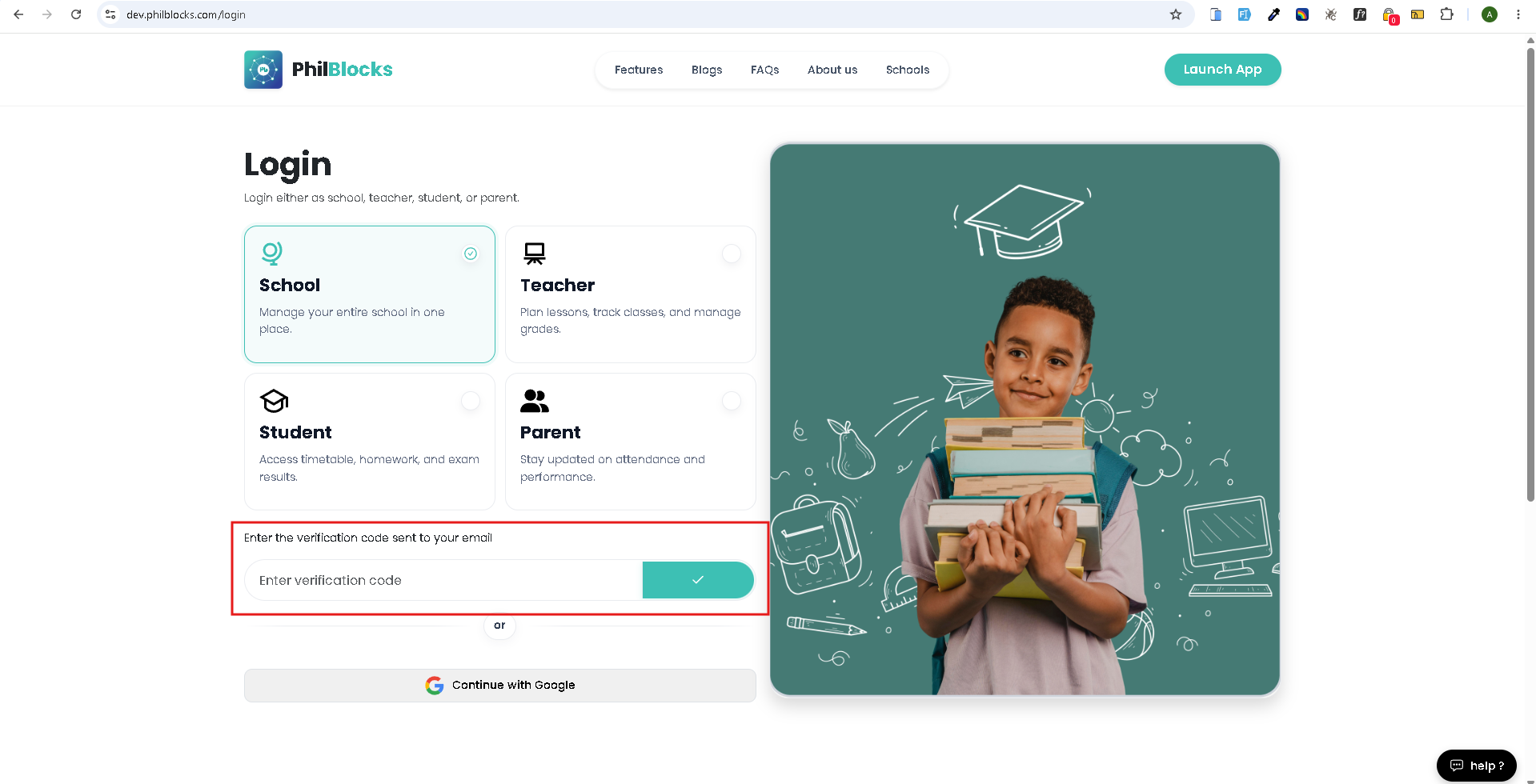
- Enter all six digits in the verification fields.
- Verify the code carefully.
- Click Verify.
Important Notes
- Verification codes expire after a limited time.
- Expired codes require a new code request.
- Incorrect codes will display an error message.
Step 4: Successful Login
Once the verification code is validated successfully, the user is automatically redirected to the appropriate dashboard.
| User Role | Redirect Destination |
|---|---|
| School Admin | School Dashboard |
| Teacher | Teacher Dashboard |
| Student | Student Dashboard |
| Parent | Parent Dashboard |
Authentication Flow Diagram
Login Page
    │
    ▼
Enter Registered Email
    │
    ▼
Receive Verification Code
    │
    ▼
Enter 6-Digit Code
    │
    ▼
Verify Code
    │
    ▼
Access Dashboard
Error Handling
Email Address Not Found
If the entered email address is not registered:
- Verification code will not be sent.
- User will receive an error message.
- Contact the school administrator for assistance.
Invalid Verification Code
If an incorrect verification code is entered:
- An error message is displayed.
- The user can re-enter the correct code.
Example:
Invalid verification code. Please try again.
Verification Code Expired
If the code has expired:
- Verification fails.
- User must request a new verification code.
Example:
Verification code expired. Please request a new code.
Security Features
PhilBlocks authentication includes:
- Email-based verification
- Time-limited verification codes
- Secure session management
- Role-based dashboard access
- Protection against unauthorized access