Class Management
The Class Management module helps school staff create, organize, and manage classes, sections, routines, and teacher assignments in one place.
Using this module, administrators can:
- Create and name new classes
- Assign class sections, shifts, batches, and rooms
- Link class teachers to each class
- Configure routine schedules for subjects and breaks
- View class details and student assignments
- Quickly update class settings or remove unused classes
This page explains how to manage classes in PhilBlocks step by step.
At a glance
- Understand class creation flow
- Review class and section details
- Manage teacher and room assignments
Useful for
- School admins
- Class coordinators
- Timetable planners
Class List Overview
The Class Management page shows all active classes in a grid view.
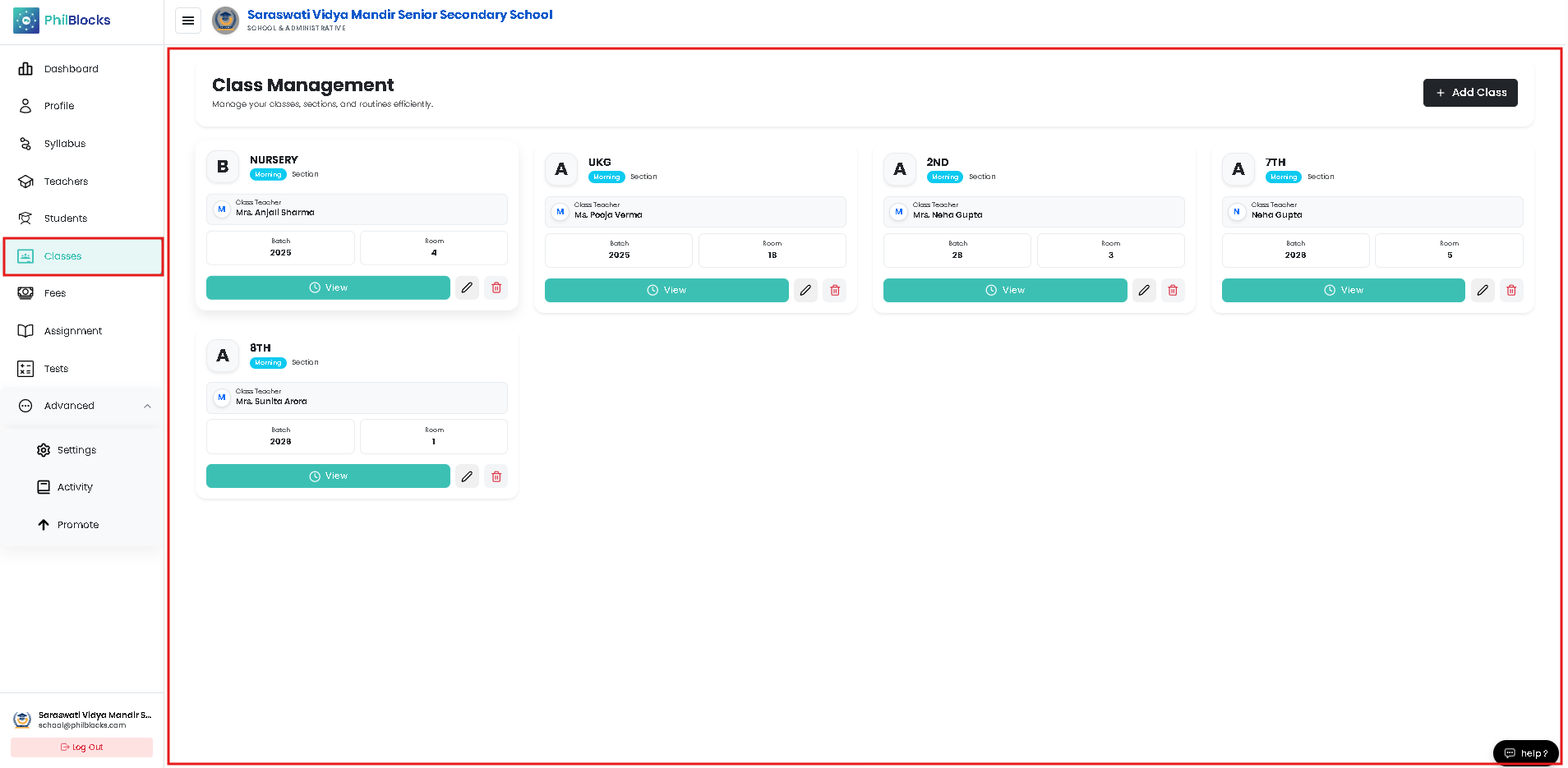
Each class card typically includes:
| Field | Description |
|---|---|
| Class Name | The class title, e.g. Nursery, 7th, 8th |
| Section | Section label such as A, B, C |
| Shift | Class shift, for example Morning or Afternoon |
| Batch | Admission batch year, e.g. 2025, 2026 |
| Room No | Assigned classroom or room number |
| Class Teacher | Assigned teacher name |
| Actions | View, edit, or delete the class |
Adding a New Class
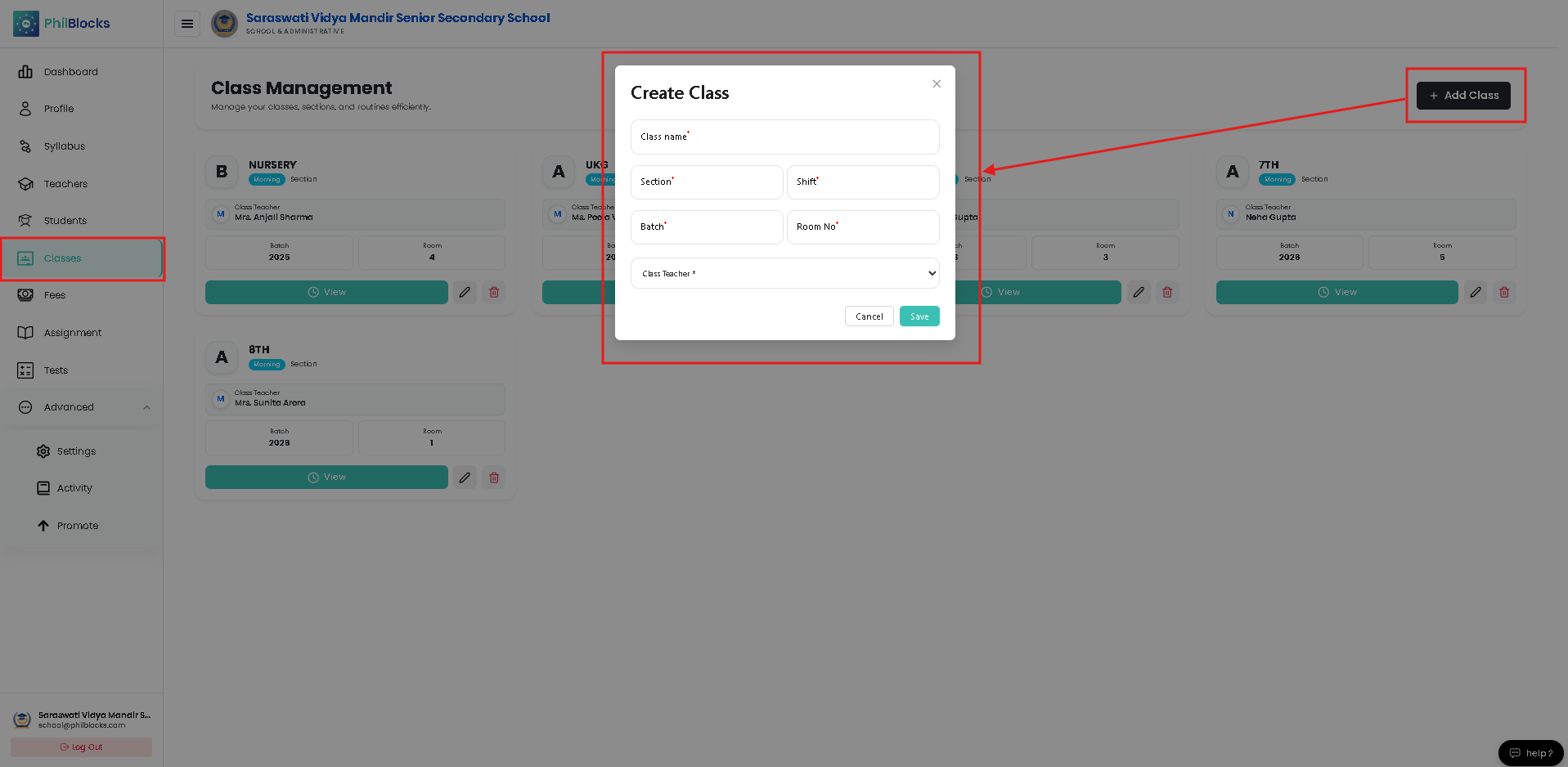
To create a new class:
- Click the Add Class button.
- Complete the class details in the form.
- Save the class to add it to the schedule.
Class Creation Fields
Class name
Enter the class name clearly.
Example:
Nursery
Section
Select or enter a section label.
Example:
B
Shift
Choose the shift for the class.
Example:
Morning
Batch
Enter the admission batch or session year.
Example:
2026
Room No
Select the classroom number assigned to this class.
Example:
4
Class Teacher
Choose the teacher who will lead this class.
Example:
Mrs. Anjali Sharma
Viewing Class Details
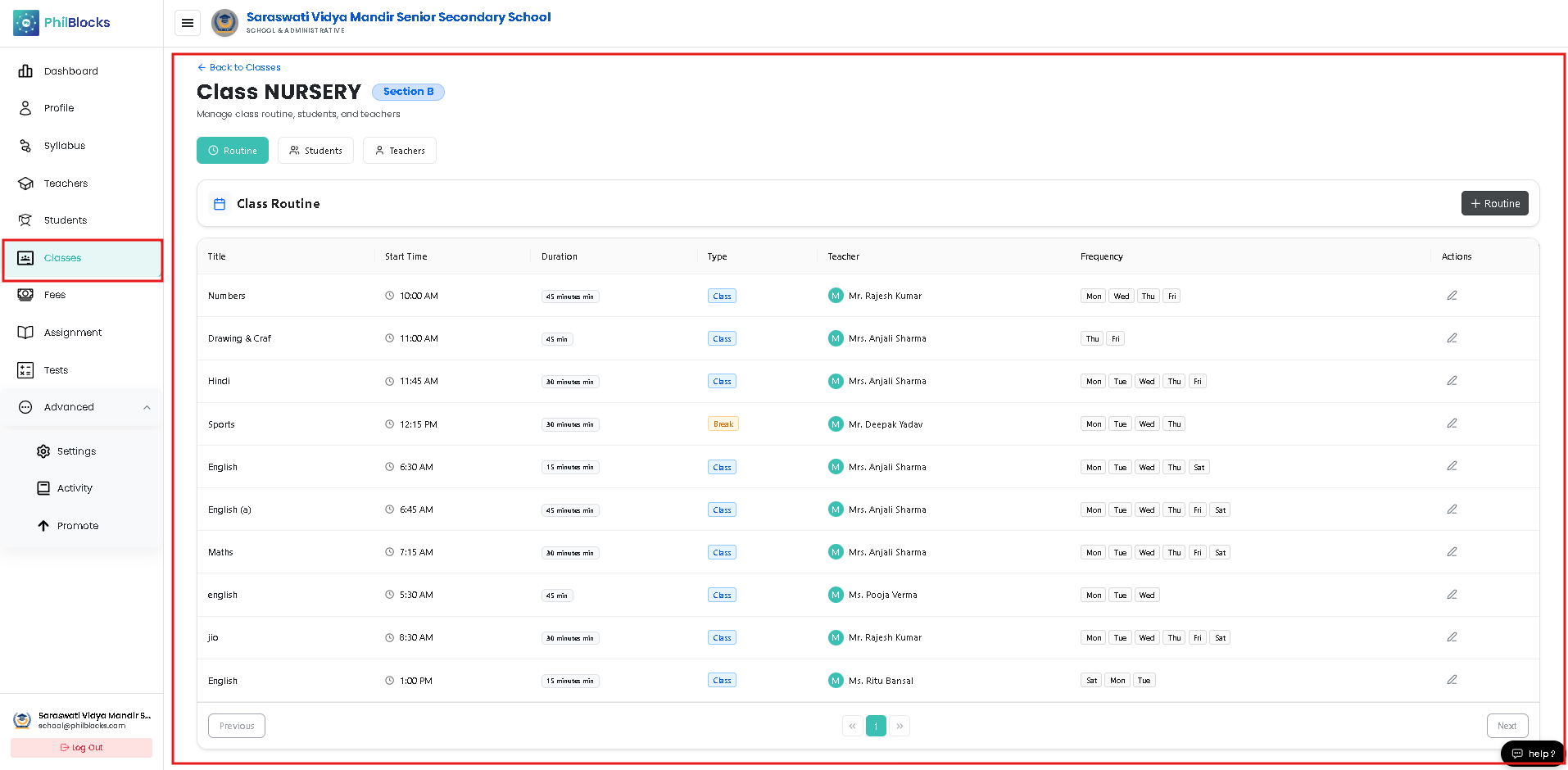
Each class card includes a View button to open the class detail page.
The detail page usually contains:
- Class name and section
- Assigned teacher
- Batch, shift, and room information
- Class routine overview
- Student and teacher lists
Managing Class Routines
Class routines are the scheduled subject timelines for each class.
To create or update a routine:
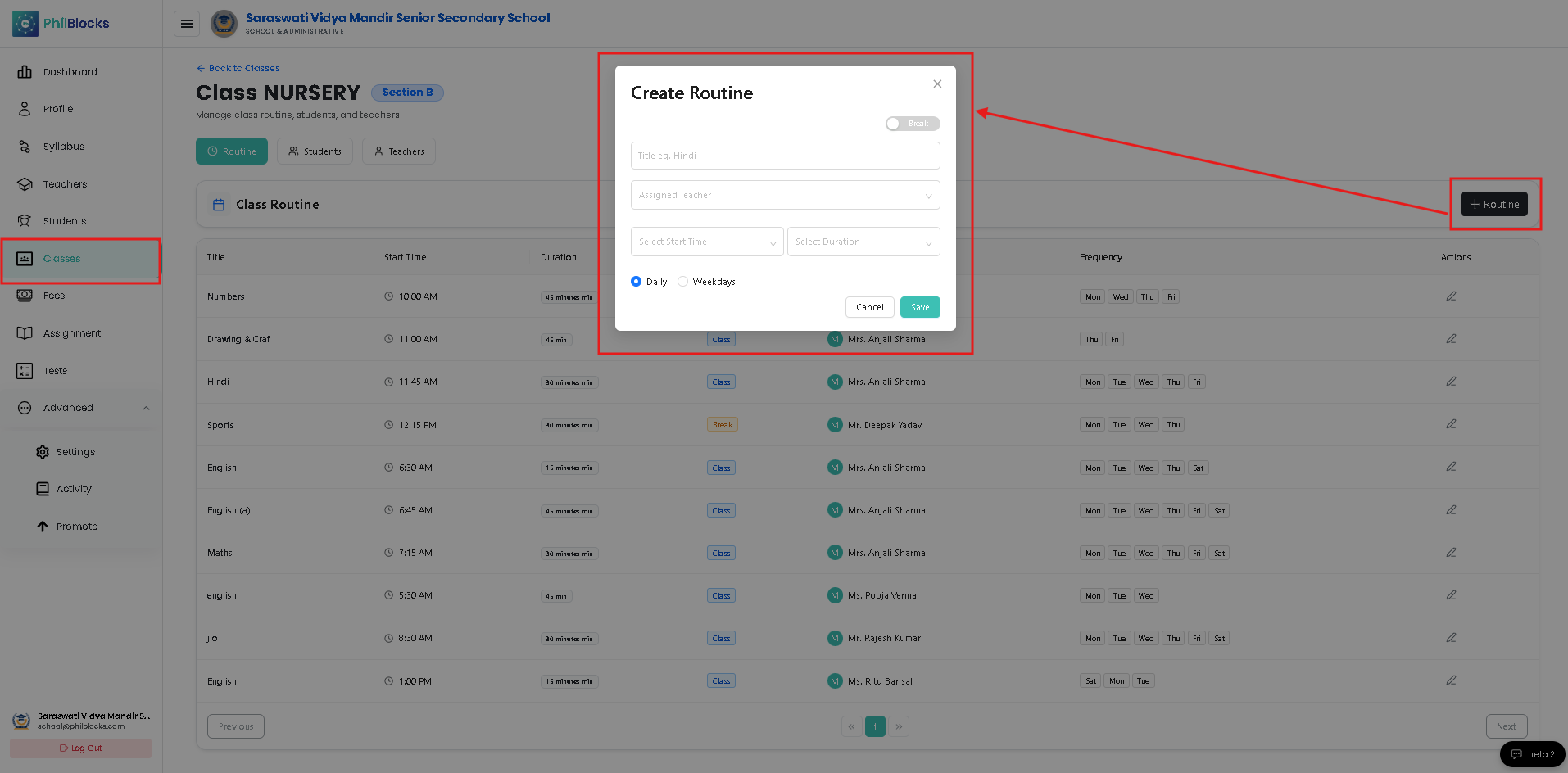
- Open the class detail page.
- Click the Routine button.
- Fill in the routine form with title, teacher, start time, and duration.
- Choose how frequently the routine repeats.
- Save the routine.
Routine Fields
Title
Enter the subject or activity name.
Example:
Hindi
Assigned Teacher
Select the teacher responsible for the class session.
Start Time
Choose the beginning time of the period.
Example:
10:00 AM
Duration
Select the period duration.
Example:
30 minutes
Frequency
Choose whether the routine repeats daily or only on weekdays.
Class Actions
Every class includes action buttons for quick management.
View Class
Displays the full class page, including the routine and assigned teachers.
Edit Class
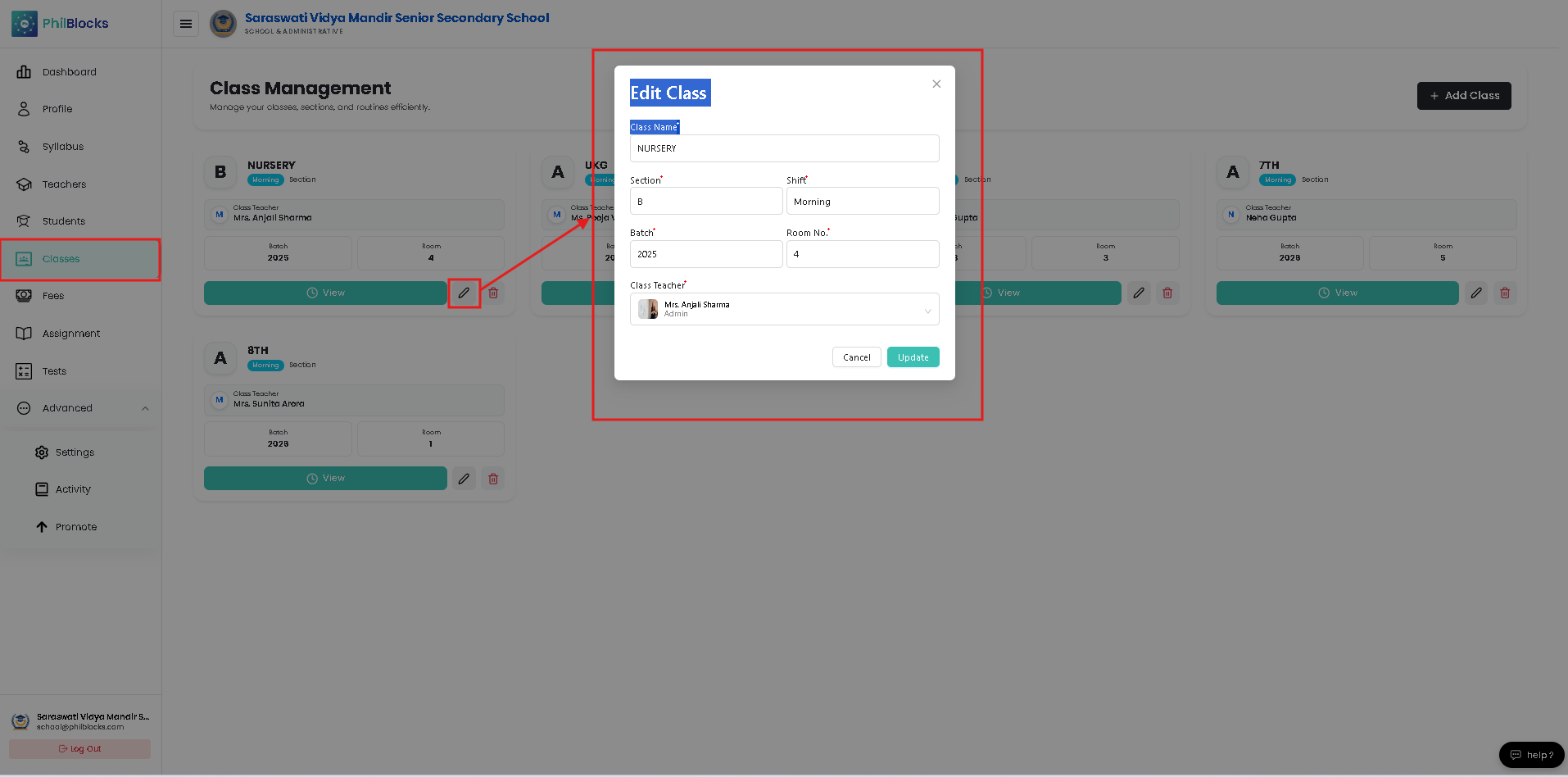
Update class details such as section, teacher, batch, or room.
Delete Class
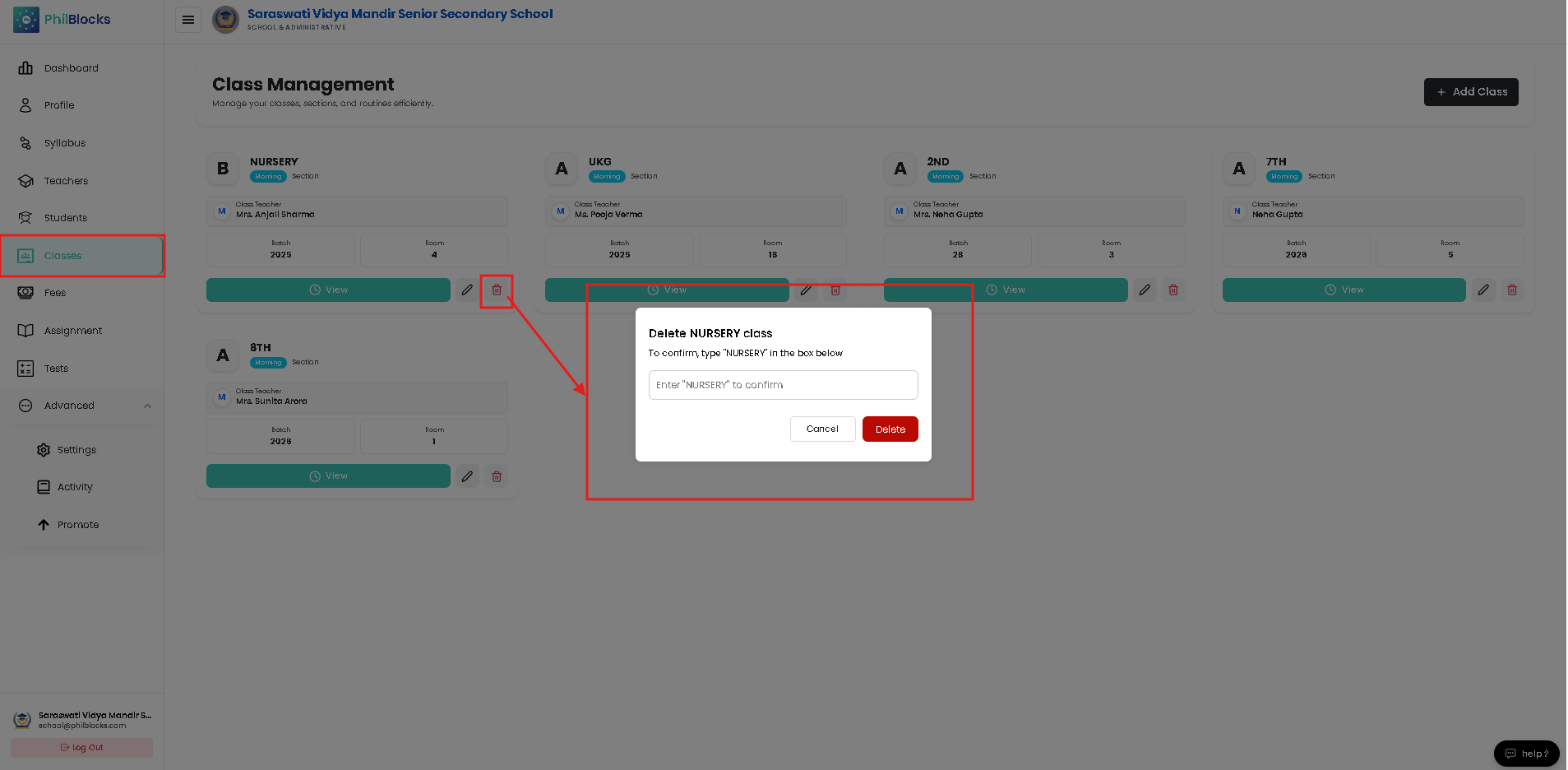
Remove a class when it is no longer needed.
Use this when a class is retired or was created by mistake.
Class Filtering and Search
Use the filter options to locate classes fast.
Common filters include:
- Class name
- Section
- Shift
- Batch
- Room number
Managing Students and Teachers in a Class
The class detail page often includes tabs for:
- Students — to view or manage enrolled learners
- Teachers — to see additional staff assigned to the class
This helps administrators maintain classroom membership and teaching support.
Best Practices
✅ Use descriptive class names and sections
✅ Assign a class teacher for every class
✅ Keep room numbers up to date
✅ Create routine schedules before adding students
✅ Review class settings after each batch update
Frequently Asked Questions
Who can create classes?
School administrators and authorized staff members can create classes.
Can class details be edited later?
Yes. Class information can be updated at any time from the class detail page.
Can I delete a class after students are assigned?
Yes, but only if the class is no longer in use. Ensure student assignments are handled before deleting.
How do I add a routine to a class?
Open the class detail page, click Routine, and complete the schedule form.
Can I assign a teacher while creating a class?
Yes. The class creation form includes a Class Teacher field.
Related Documentation
- Authentication Flow
- Teacher Management
- Student Management
- Fee Management
- Attendance Management
- Assignments
Class Management Workflow
Create Class
      │
      ▼
Assign Section, Batch, Room
      │
      ▼
Assign Class Teacher
      │
      ▼
Create Routine
      │
      ▼
Add Students
      │
      ▼
Review and Save