Dashboard Overview
Welcome to the PhilBlocks Dashboard.
The dashboard is the first screen you see after logging in. It provides a quick overview of your school's activities, student information, attendance status, parent engagement, and important announcements.
This guide explains each section in simple terms so that anyone can use the dashboard confidently.
What you can do
- View summary cards for attendance and fees
- Monitor active teacher and parent activity
- See upcoming events and notices
Who should use this
- School administrators
- Account managers
- Operations staff
Dashboard
The dashboard is divided into three main sections:
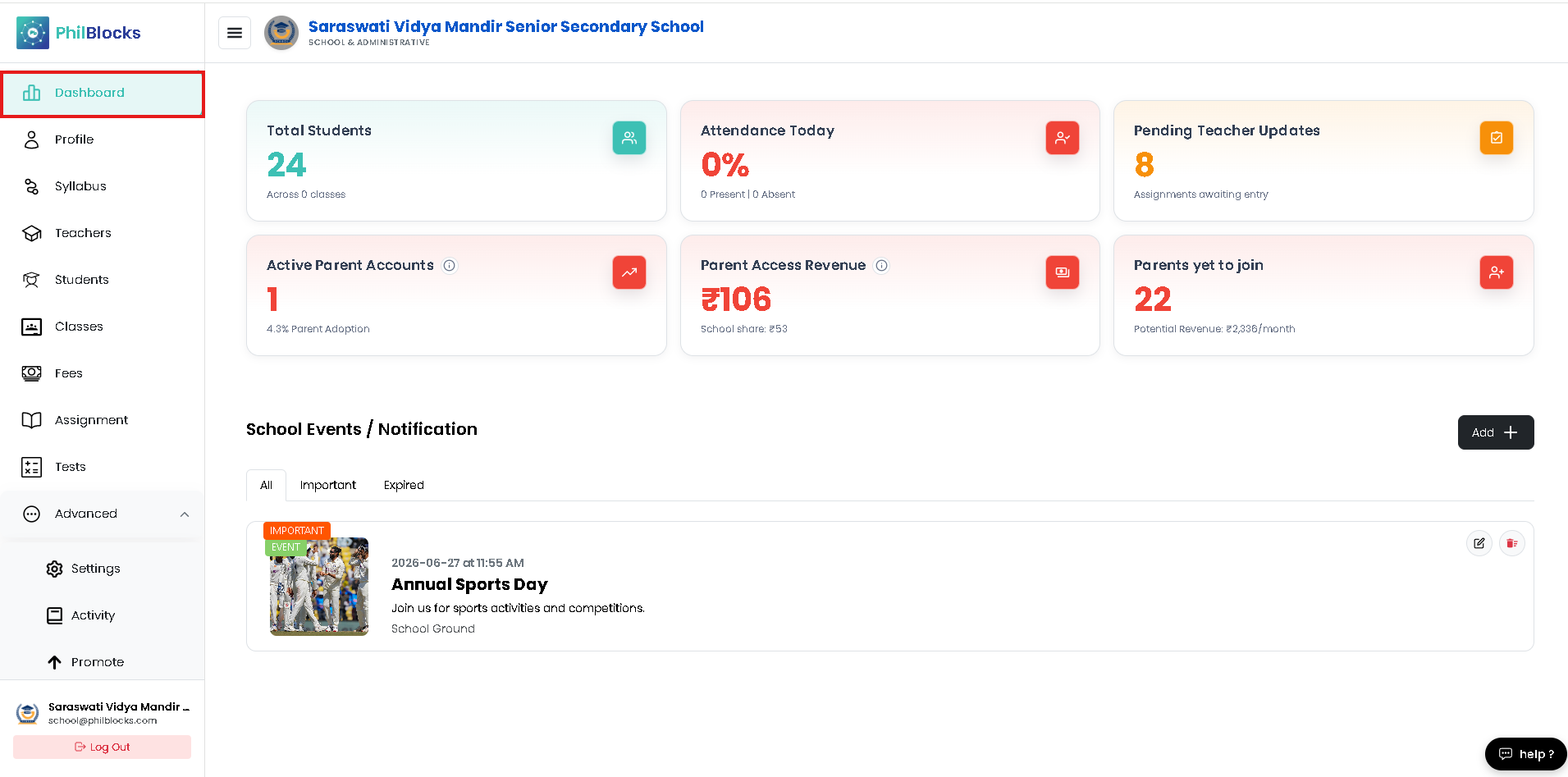
- Navigation Menu
- Summary Cards
- School Events & Notifications
Navigation Menu
The menu is located on the left side of the screen.
From here, you can access different modules of the system.
Available Sections
| Menu | Purpose |
|---|---|
| Dashboard | View school overview and statistics |
| Profile | Manage school profile information |
| Syllabus | Manage syllabus details |
| Teachers | View and manage teachers |
| Students | View and manage students |
| Classes | Manage classes and sections |
| Fees | Manage fee records and payments |
| Assignment | Create and manage assignments |
| Tests | Manage examinations and tests |
| Reminders | View reminders and alerts |
| Activity | Track recent activities |
| Promote | Access promotional features |
Use the navigation menu anytime to move between different areas of the platform.
Summary Cards
At the top of the dashboard, you will find several information cards.
These cards provide important school insights at a glance.
Total Students
Displays:
- Total number of students enrolled
- Number of classes available
Why It Matters
This helps administrators quickly understand the size of the school and monitor enrollment growth.
Attendance Today
Displays:
- Today's attendance percentage
- Total present students
- Total absent students
Why It Matters
Provides an instant overview of daily attendance performance.
Pending Teacher Updates
Displays:
- Number of assignments or updates waiting for teacher action
Why It Matters
Helps ensure teachers complete pending academic tasks on time.
Active Parent Accounts
Displays:
- Number of parents currently using the parent portal
- Parent adoption percentage
Why It Matters
Shows how actively parents are engaged with the school's digital platform.
Parent Access Revenue
Displays:
- Revenue generated through parent access subscriptions
- School revenue share
Why It Matters
Helps monitor income generated through parent engagement services.
Parents Yet to Join
Displays:
- Number of parents who have not yet activated their accounts
- Potential monthly revenue
Why It Matters
Identifies opportunities to increase parent participation.
School Events & Notifications
The School Events section is used to share important information with students, parents, and teachers.
Examples:
- Sports Day
- Annual Functions
- Holiday Notices
- Exam Schedules
- Parent Meetings
- School Announcements
Event Categories
Events can be filtered using the tabs at the top.
All
Displays all events and notices.
Important
Displays only important announcements.
Expired
Displays events that have already passed.
Creating a New Event
To create an event:
Step 1
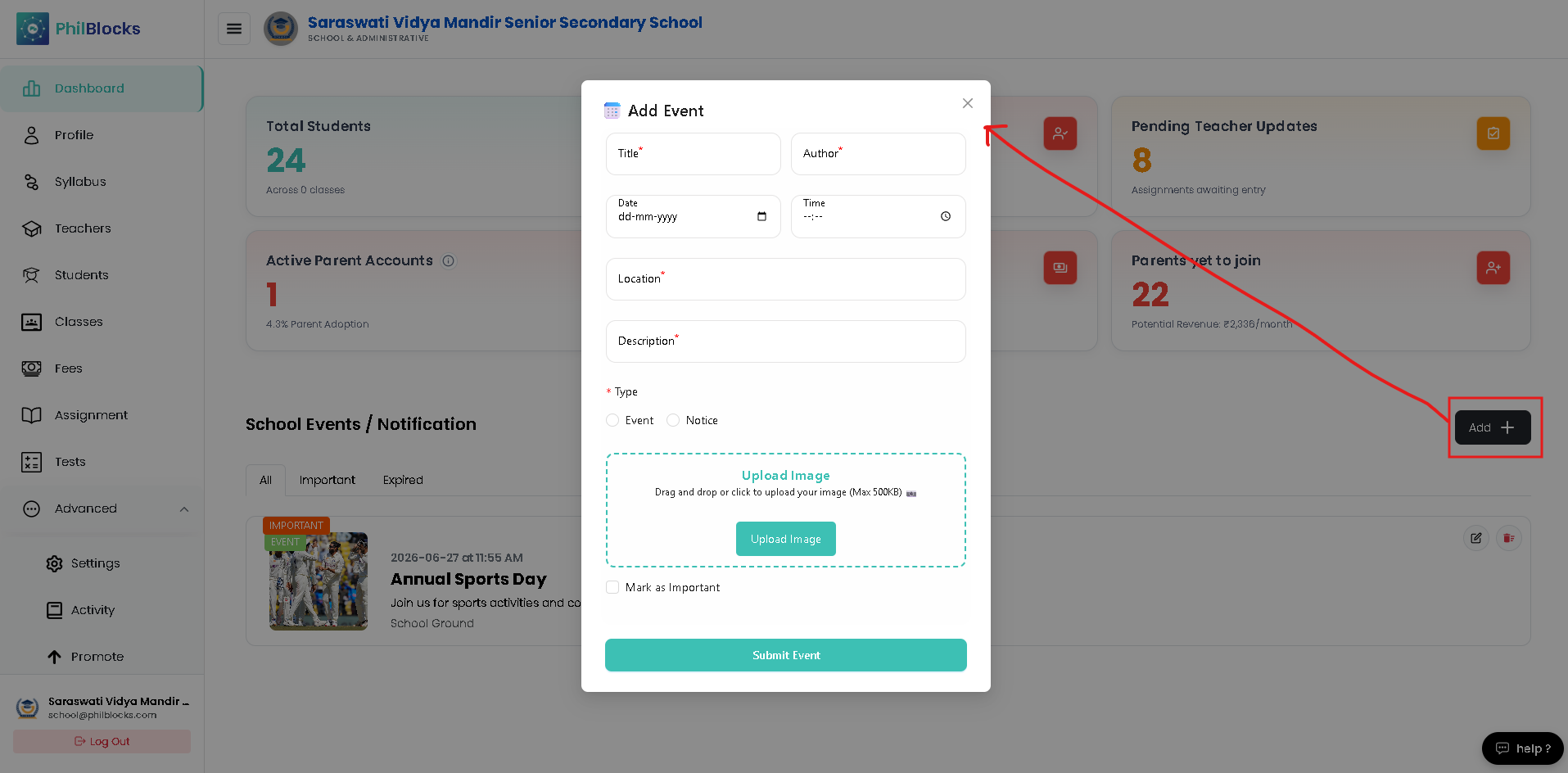
Click the Add button located in the upper-right corner of the School Events section.
The Add Event window will open.
Step 2
Enter the event title.
Example:
Annual Sports Day
Step 3
Enter the author name.
Example:
School Administration
Step 4
Select the event date.
Choose the day on which the event will take place.
Step 5
Select the event time.
Choose the starting time of the event.
Step 6
Enter the event location.
Example:
School Ground
Step 7
Enter a description.
Example:
Join us for sports activities and competitions.
Step 8
Select the event type.
Choose one option:
- Event
- Notice
Event
Used for activities and programs.
Examples:
- Sports Day
- Annual Function
- Science Exhibition
Notice
Used for announcements and updates.
Examples:
- Holiday Notice
- Fee Reminder
- Examination Schedule
Step 9
Upload an image (Optional).
You can:
- Drag and drop an image
- Click Upload Image
Supported images help make announcements more attractive and informative.
Step 10
(Optional) Enable Mark as Important.
Important events will appear under the Important tab and receive greater visibility.
Step 11
Click Submit Event.
The event will immediately appear in the School Events section.
Managing Existing Events
Each event card contains management options.
Edit Event
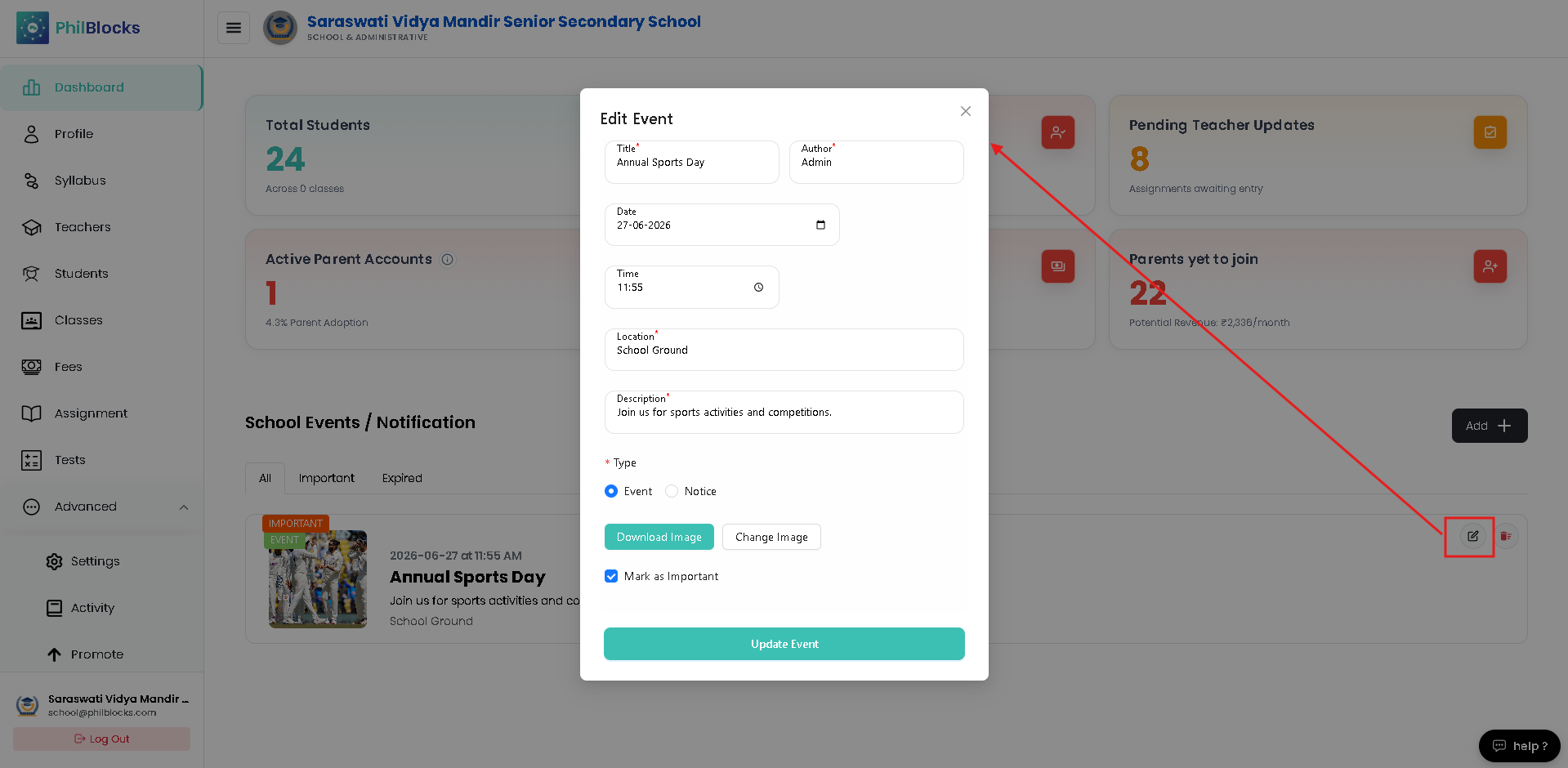
Click the edit icon to:
- Change title
- Update date or time
- Modify description
- Replace image
Delete Event
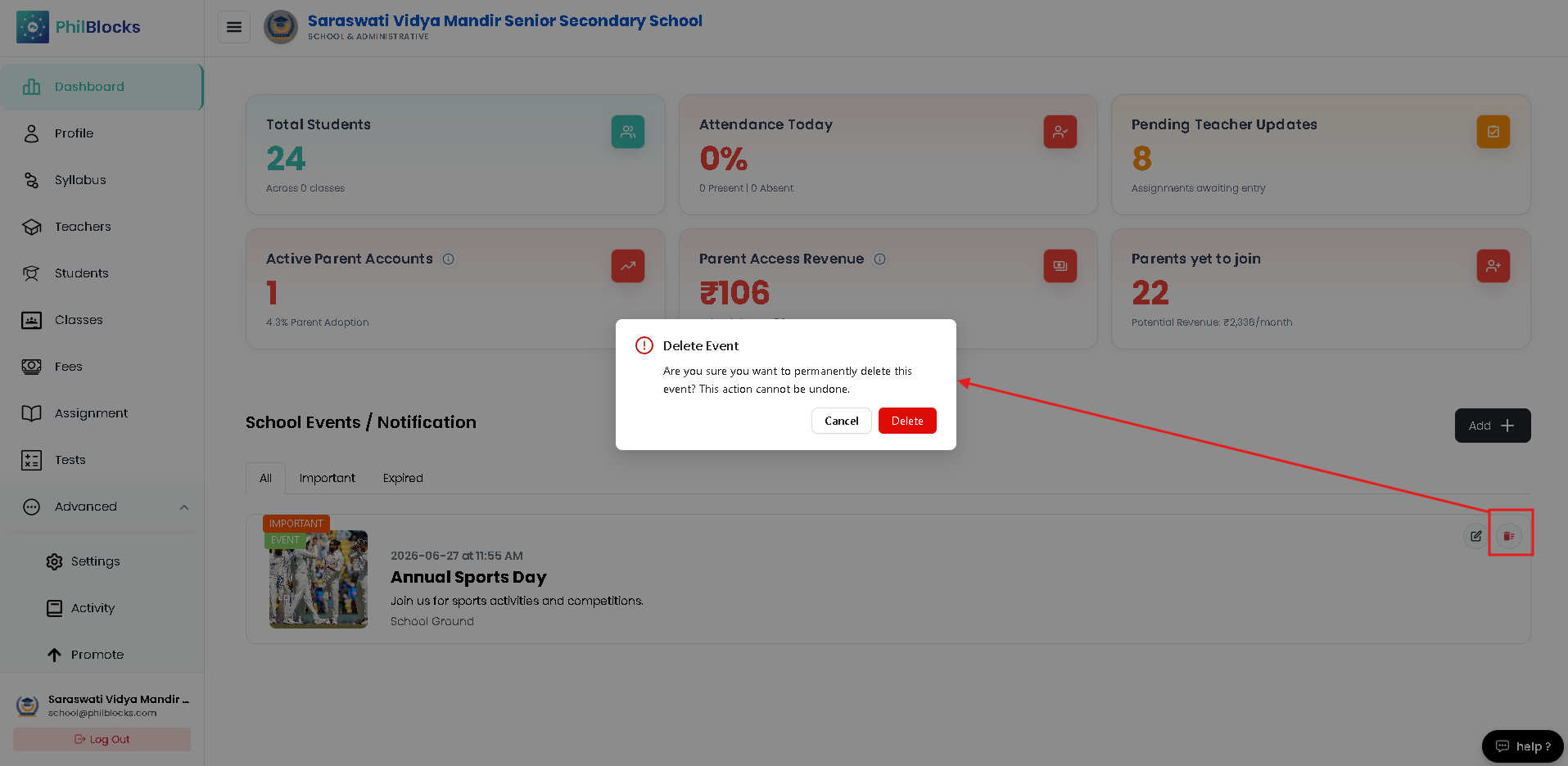
Click the delete icon to remove an event permanently.
Deleted events cannot be recovered.
Best Practices
To keep communication effective:
✅ Use clear event titles
✅ Add accurate dates and times
✅ Upload relevant images
✅ Mark urgent announcements as Important
✅ Remove outdated notices regularly
✅ Keep descriptions short and easy to understand
Frequently Asked Questions
Who can create events?
School administrators and authorized users.
Can I edit an event after publishing?
Yes. Use the Edit option available on the event card.
Can I delete an event?
Yes. Use the Delete option available on the event card.
What happens when an event expires?
Expired events automatically appear under the Expired tab.
Is uploading an image required?
No. Images are optional but recommended for better visibility.
Related Documentation
- Authentication Flow
- Teacher Management
- Student Management
- Class Management
- Fees Management
- Assignments
- Tests & Examinations
Congratulations! 🎉
You now know how to navigate the dashboard, monitor school activities, and create announcements using PhilBlocks.
This format follows professional SaaS documentation standards and is written for non-technical school staff, principals, coordinators, and administrators.