Fee Management
The Fee Management module enables schools to track fee collections, configure fee structures, and record payment transactions with clarity.
This page explains the Fee Management dashboard, how to create fee structures, and how to add fee transactions.
Fee Management Overview
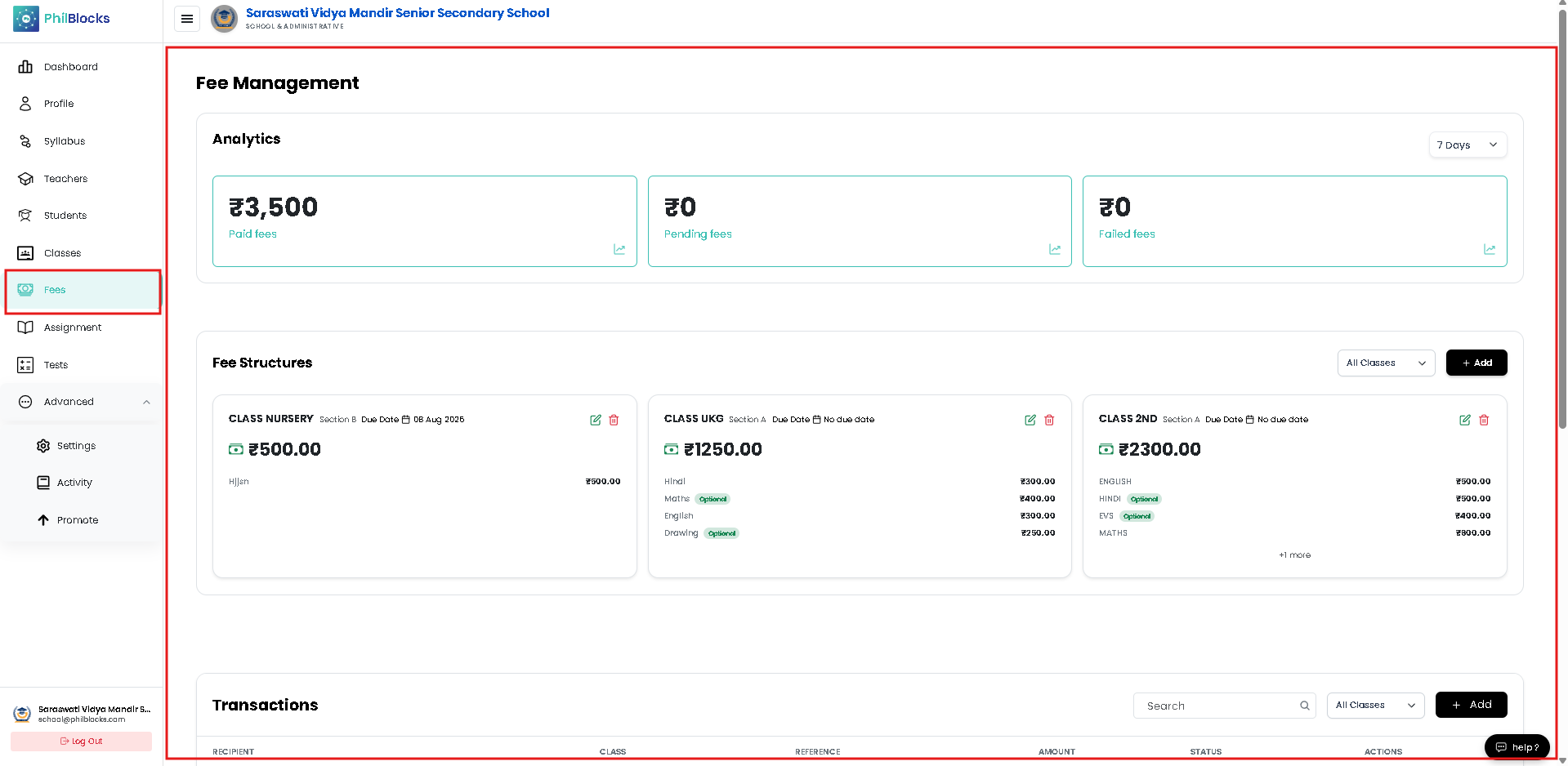
The Fee Management page is divided into three main sections:
- Analytics — summarizes paid, pending, and failed fees.
- Fee Structures — shows the configured fee plans for each class and section.
- Transactions — records payment entries for individual students.
Use these sections to monitor cash flow and manage fees efficiently.
What you can manage
- Fee structures and payment records
- Analytics for paid and due fees
- Overdue and failed transaction tracking
Great for
- Accounts teams
- Billing managers
- School administrators
Analytics Panel
The analytics panel provides fast visibility into fee performance.
It usually includes:
- Paid Fees — total collected amount for the selected session.
- Pending Fees — unpaid due amounts waiting for payment.
- Failed Fees — transactions that did not complete successfully.
This dashboard helps administrators identify collection gaps and prioritize follow-up actions.
Fee Structures
The Fee Structures area lists all configured fee plans by class and section.
Each fee structure card typically displays:
- Class name and section
- Due date, if set
- Total fee amount
- Fee head details (for example tuition, exam, activity fees)
- Requirement tags such as Mandatory or Optional
Creating a Fee Structure
To create a fee structure:
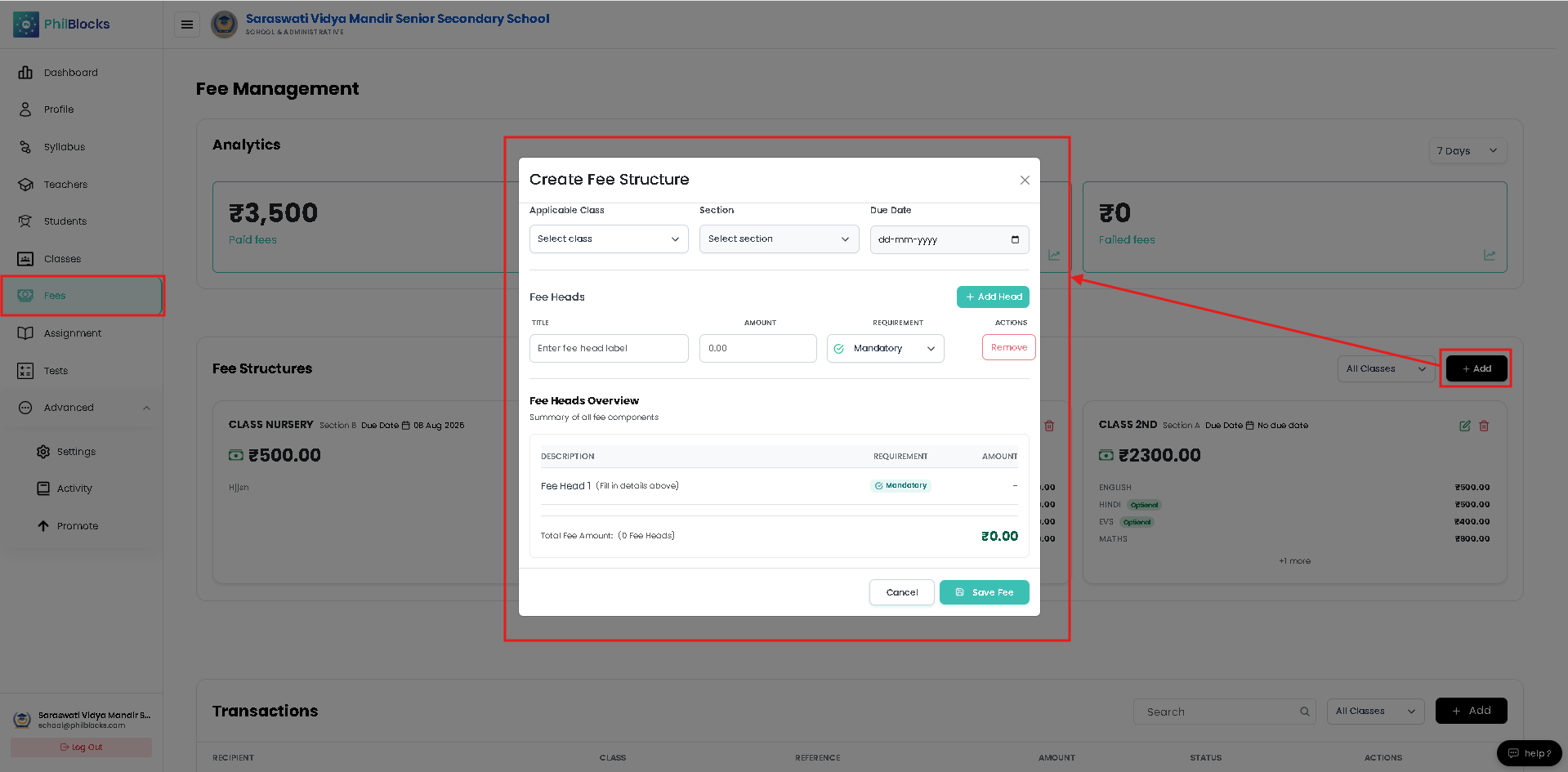
- Click Add in the Fee Structures section.
- Choose the applicable class.
- Select the section.
- Set the due date for the fee structure.
- Add fee heads and amounts.
- Mark each fee head as Mandatory or Optional.
- Save the fee structure.
Fee Structure Form Fields
Applicable Class
Select the class or grade that the fee structure applies to.
Section
Choose the section for the fee plan.
Due Date
Define the payment due date for the fee structure.
Fee Heads
Add separate fee head lines for each component.
Examples:
- Tuition
- Hindi
- Maths
- English
- Activity
For each fee head, enter the label, the amount, and whether it is mandatory or optional.
Fee Heads Overview
The form shows a summary of all fee components and the total computed fee amount.
This summary helps ensure the fee structure is complete before saving.
Transaction Recording
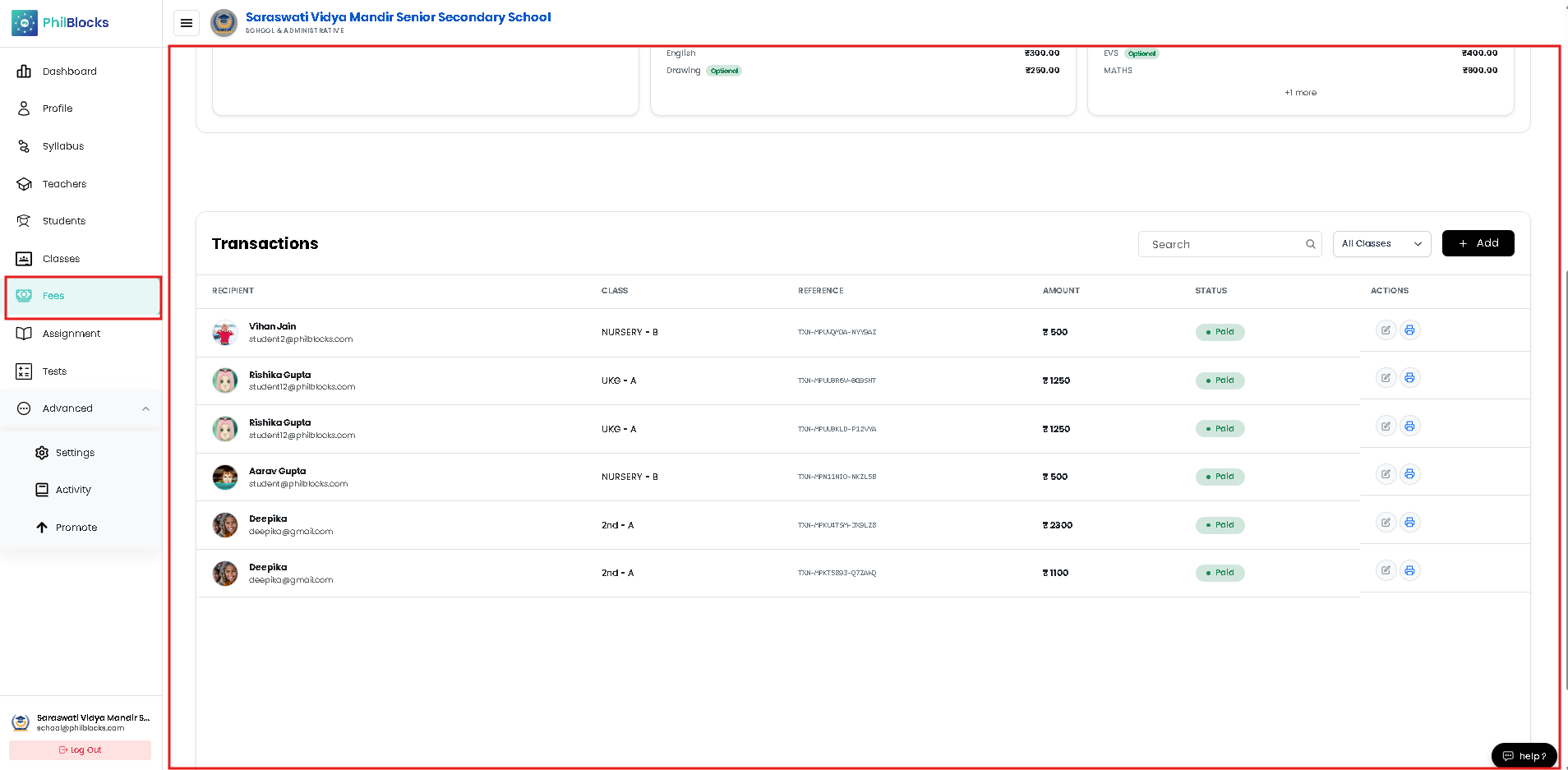
The Transactions section records individual fee payments.
It typically includes columns for:
- Recipient — student name and profile
- Class — class and section
- Reference — payment identifier
- Amount — paid amount
- Status — Paid, Pending, or Failed
- Actions — edit or print receipt
Adding a Fee Transaction
To add a fee transaction:
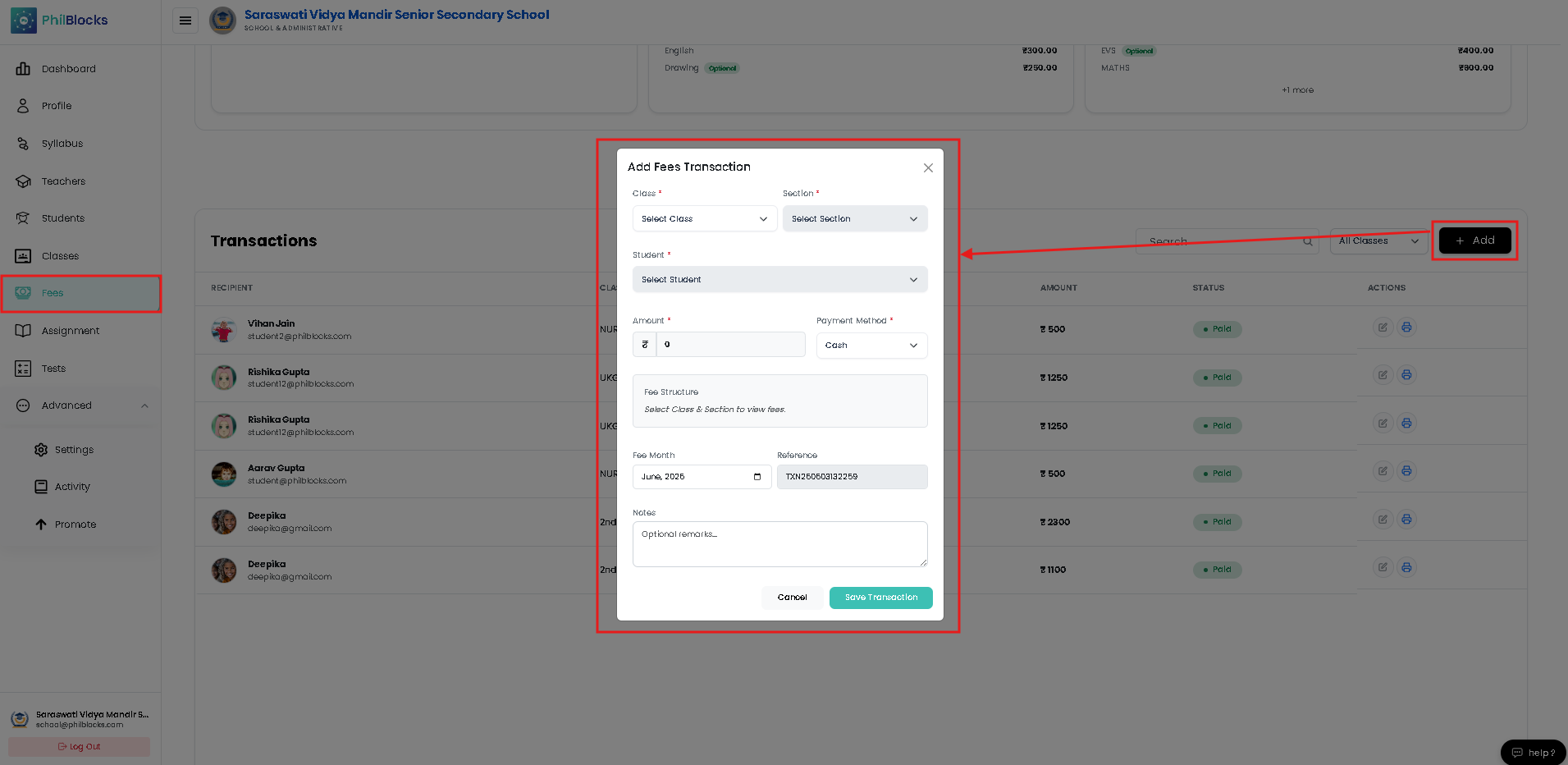
- Click Add in the Transactions section.
- Select the class and section.
- Choose the student.
- Enter the amount.
- Choose the payment method.
- Verify the fee structure details.
- Set the fee month and optional notes.
- Save the transaction.
Transaction Form Fields
Class
Choose the student’s class.
Section
Select the correct section.
Student
Pick the enrolled student receiving the payment.
Amount
Enter the payment amount.
Payment Method
Select the mode of payment.
Examples:
- Cash
- Bank transfer
- UPI
- Card
Fee Structure
The form may display the fee structure linked to the selected class and section.
Fee Month
Choose the month the fee is being recorded for.
Reference
A unique transaction reference is generated for each entry.
Notes
Add optional remarks or payment details.
Fee Status and Reporting
Use the analytics and transactions views to:
- Track total collection progress
- Identify unpaid or overdue fees
- Review failed payment attempts
- Export or print fee receipts
This makes it easier to keep fee records transparent and audit-ready.
Best Practices
✅ Keep fee structures updated for each academic session
✅ Mark optional fee heads clearly
✅ Verify student and class selection before saving transactions
✅ Check due dates and send reminders for pending fees
✅ Review failed transactions immediately
Frequently Asked Questions
What is a fee structure?
A fee structure is a grouped set of fee heads created for a specific class and section, with a total amount and due date.
Can one class have multiple fee structures?
Yes, you can create multiple fee structures if needed for different sessions, sections, or custom fee plans.
How do I correct a fee transaction?
Use the edit action in the Transactions table to update transaction details.
What happens if a payment fails?
Failed payments appear in the failed fees analytics card and should be reviewed for reprocessing.
Related Documentation
- Dashboard Overview
- Class Management
- Student Management
- Teacher Management
- Attendance Management
Fee Management Workflow
Create Fee Structure
      │
      ▼
Add Fee Heads and Amounts
      │
      ▼
Save Fee Structure
      │
      ▼
Add Transaction
      │
      ▼
Record Payment
      │
      ▼
Review Analytics