Syllabus Management
The Subjects & Syllabus module helps schools organize academic content for every class.
Using this module, administrators can:
- Create subjects
- Assign subjects to classes
- Define syllabus descriptions
- Manage chapters and topics
- Organize curriculum content
- Download syllabus documents as PDF
This ensures teachers, students, and administrators follow a structured academic plan throughout the academic year.
What you’ll find
- Class syllabus organization
- Subject cards and details
- Curriculum chapter structure
Who it helps
- Curriculum coordinators
- Teachers
- School leaders
Understanding the Syllabus Dashboard
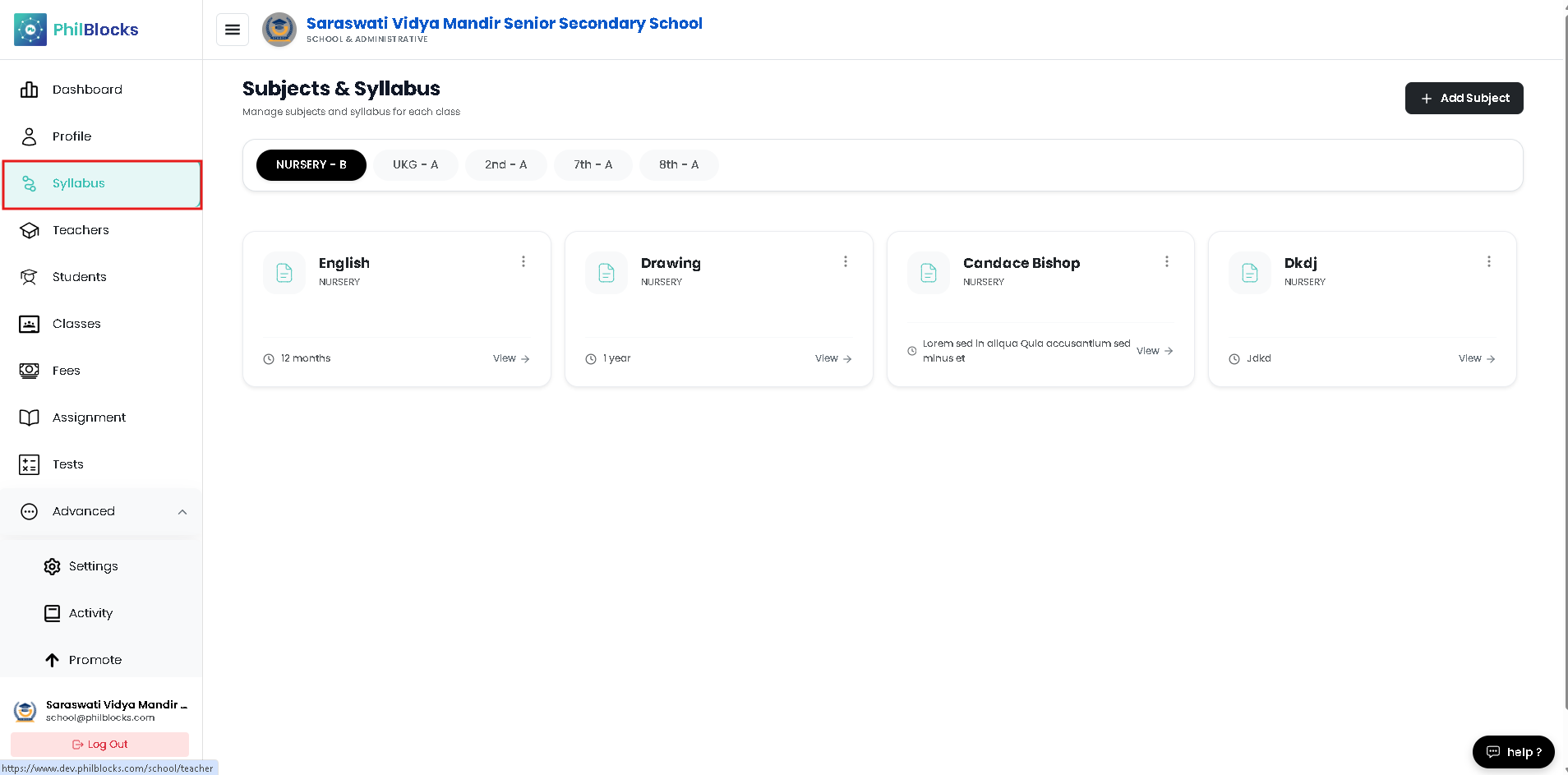 The syllabus dashboard contains three main sections:
Class Selection
Located at the top of the page.
Examples:
- Nursery – A
- Nursery – B
- UKG – A
- 1st – A
- 2nd – A
Selecting a class displays all subjects assigned to that class.
Subject Cards
The center section displays subject cards.
Each card contains:
- Subject Name
- Class Name
- Duration
- Brief Description
Example:
Mathematics
Duration: 10 Months
Class: Nursery-B
Subject Details Panel
When a subject is selected, detailed information appears on the right side.
Information includes:
- Subject Name
- Class
- Description
- Duration
- Open Subject Details Button
Creating a New Subject
To create a new subject:
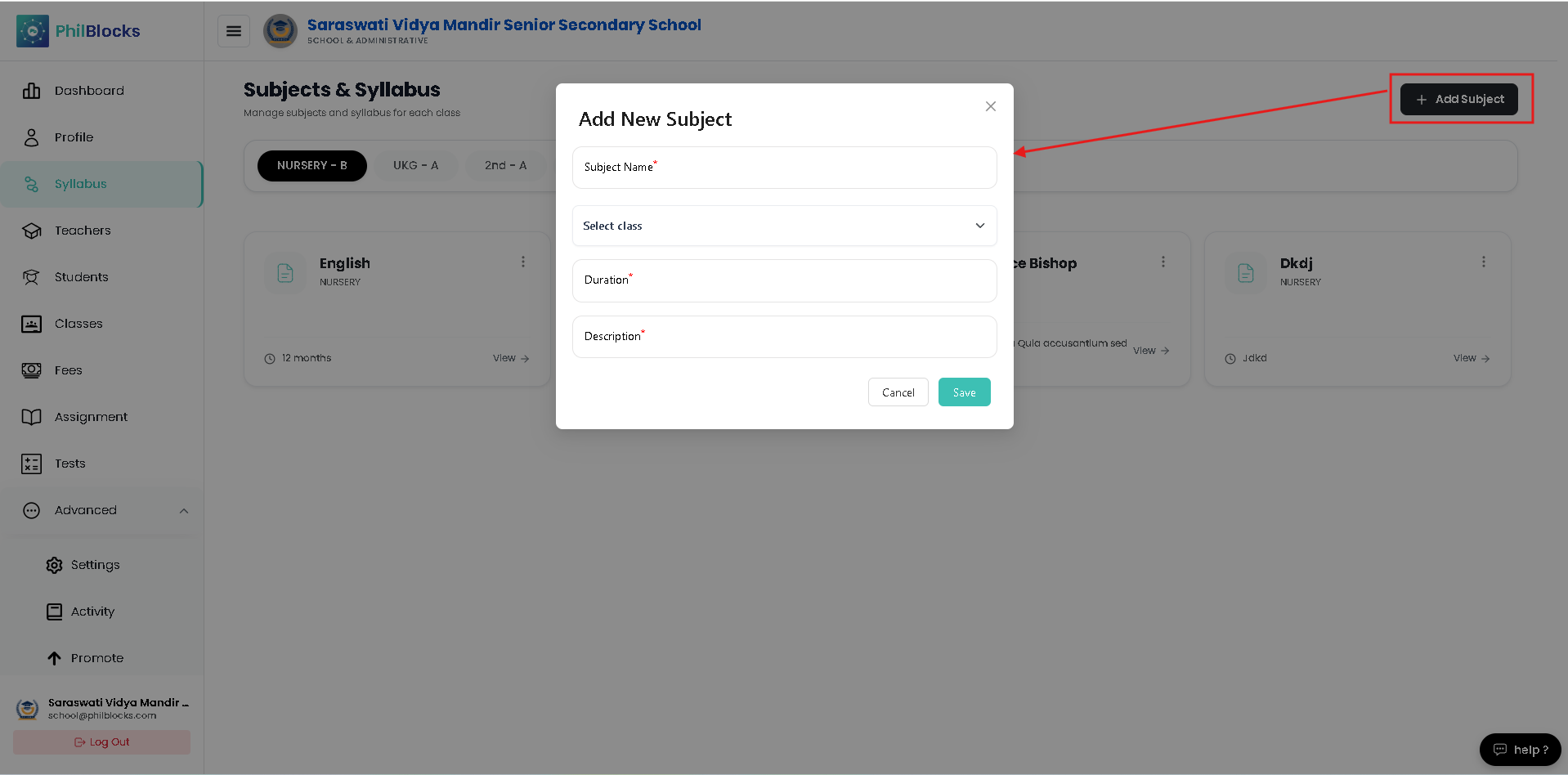
Step 1
Click the Add Subject button.
The Add New Subject window opens.
Subject Information
Complete all required fields.
Subject Name
Enter the subject name.
Examples:
- Mathematics
- English
- Science
- Hindi
- Computer Science
Select Class
Choose the class for which the subject belongs.
Examples:
- Nursery
- UKG
- Grade 1
- Grade 5
Duration
Enter the duration of the syllabus.
Examples:
10 Months
1 Academic Year
Description
Provide a brief overview of the subject.
Example:
Introduction to basic numbers, counting objects, and number recognition.
Save Subject
Click Save.
The new subject will immediately appear in the subject list.
Viewing Subject Details
To view detailed syllabus information:
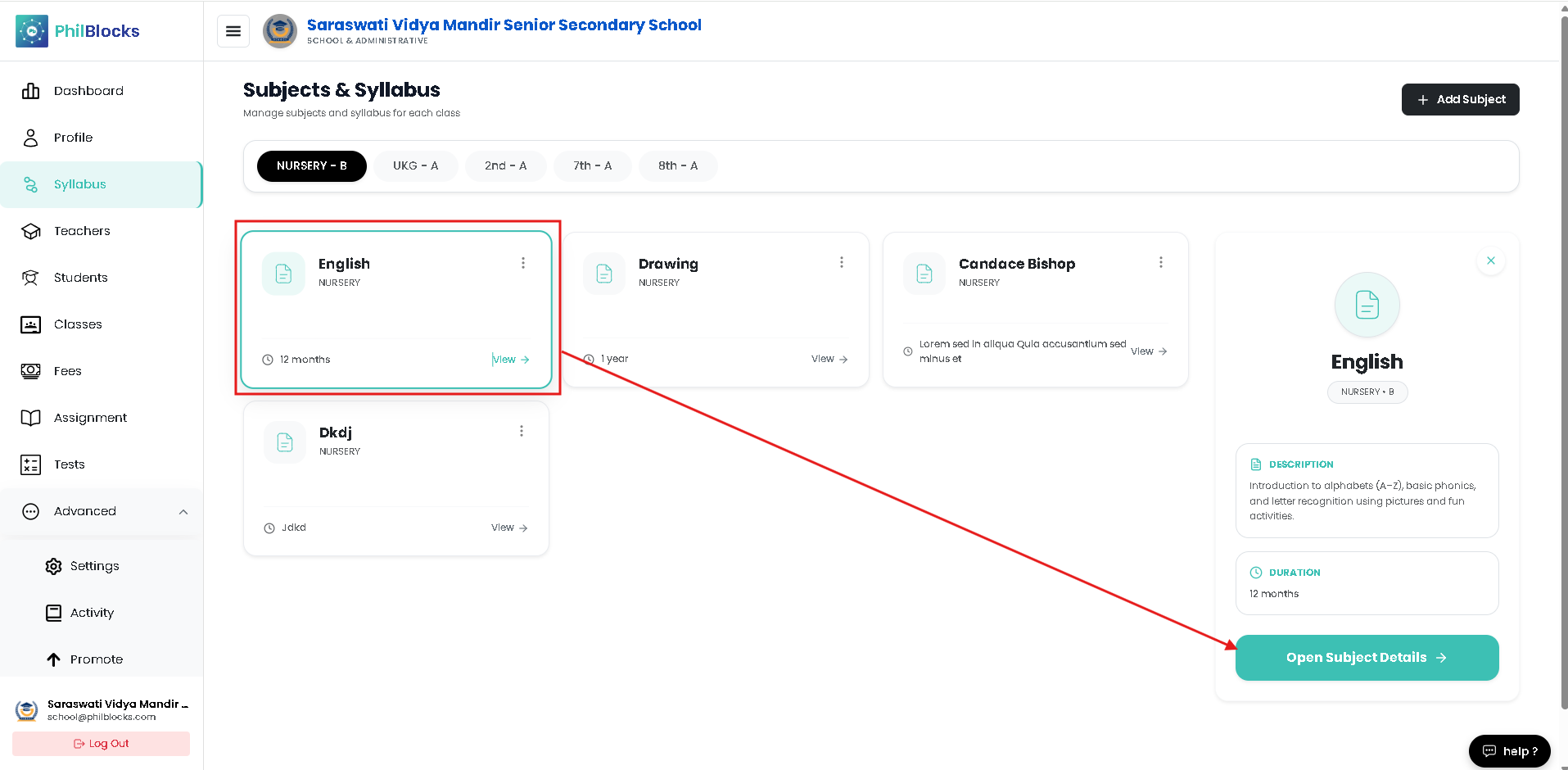
Step 1
Locate the desired subject card.
Step 2
Click View.
Step 3
The Subject Details panel opens.
Information Available
Subject Name
Displays the full subject title.
Description
Provides a summary of the subject curriculum.
Example:
Introduction to numbers, counting objects, matching activities, and basic mathematical concepts.
Duration
Displays the syllabus completion timeline.
Example:
10 Months
Open Subject Details
Click Open Subject Details to access the complete syllabus structure.
Managing Syllabus Content
The Subject Details page contains all chapters and topics associated with the selected subject.
Syllabus Contents
The Contents page displays:
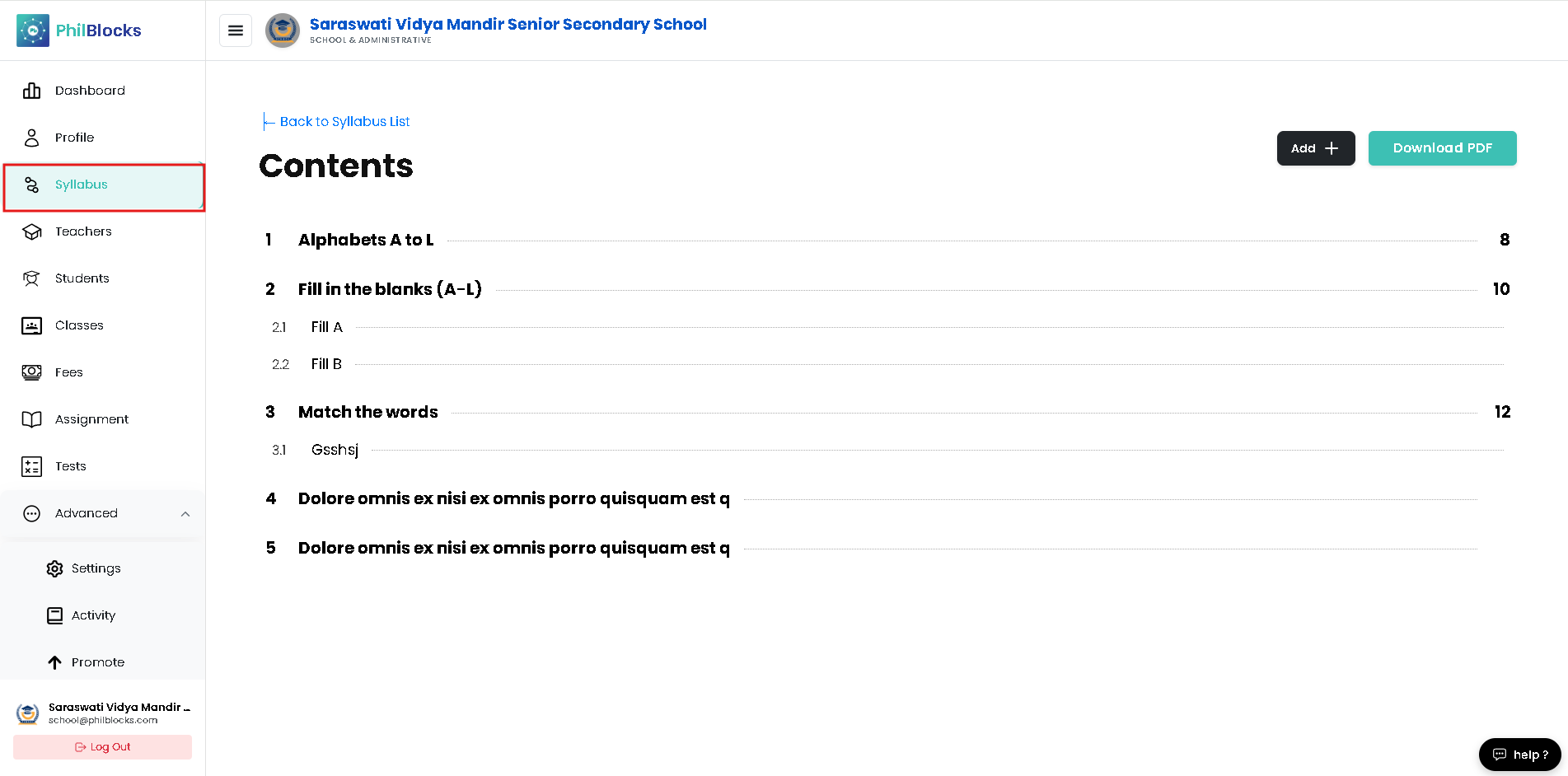
- Chapters
- Units
- Topics
- Subtopics
- Page References
Example:
| Chapter | Topic |
|---|---|
| 1 | Counting 1 to 10 |
| 2 | Missing Numbers |
| 3 | Oral Number Revision |
| 4 | Count and Write |
| 5 | Match the Number |
Topic Hierarchy
Topics can contain multiple subtopics.
Example:
4 Count and Write

4.1 Counting 1–5

4.2 Counting 1–10
Benefits of Topic Organization
A structured syllabus helps:
- Teachers plan lessons
- Students follow curriculum progression
- Parents monitor learning objectives
- Schools maintain academic consistency
Adding New Syllabus Content
To add a chapter or topic:
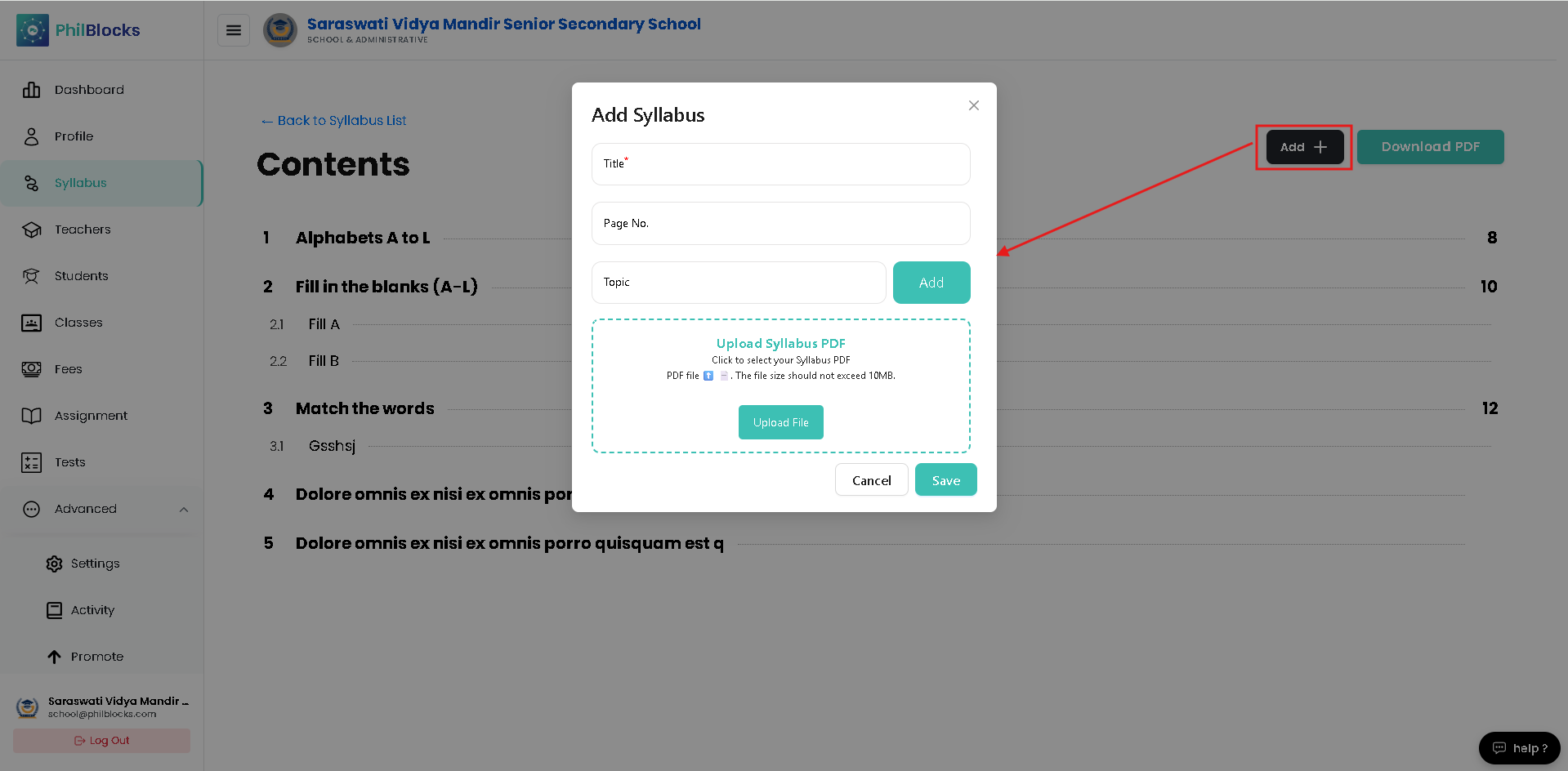
Step 1
Open Subject Details.
Step 2
Click the Add button.
Step 3
Enter chapter details.
Step 4
Add topic name.
Step 5
Save changes.
The new content will appear in the syllabus list.
Downloading the Syllabus
Schools can download syllabus documents for printing and sharing.
Step 1
Open Subject Details.
Step 2
Click Download PDF.
Step 3
The syllabus PDF is generated automatically.
Why Download PDFs?
PDF files can be used for:
- Parent distribution
- Teacher reference
- Academic planning
- Printed curriculum guides
- School records
Editing a Subject
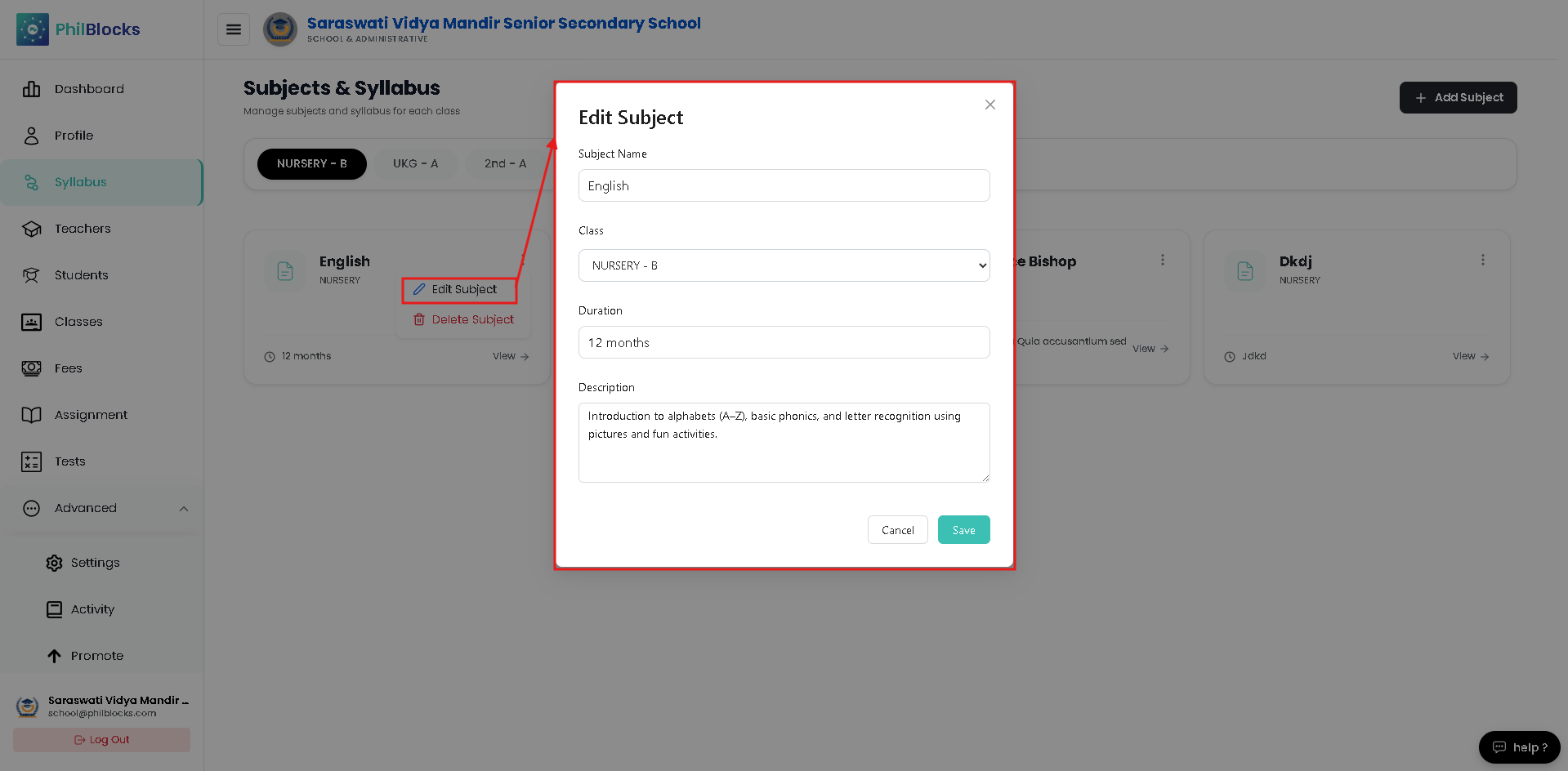
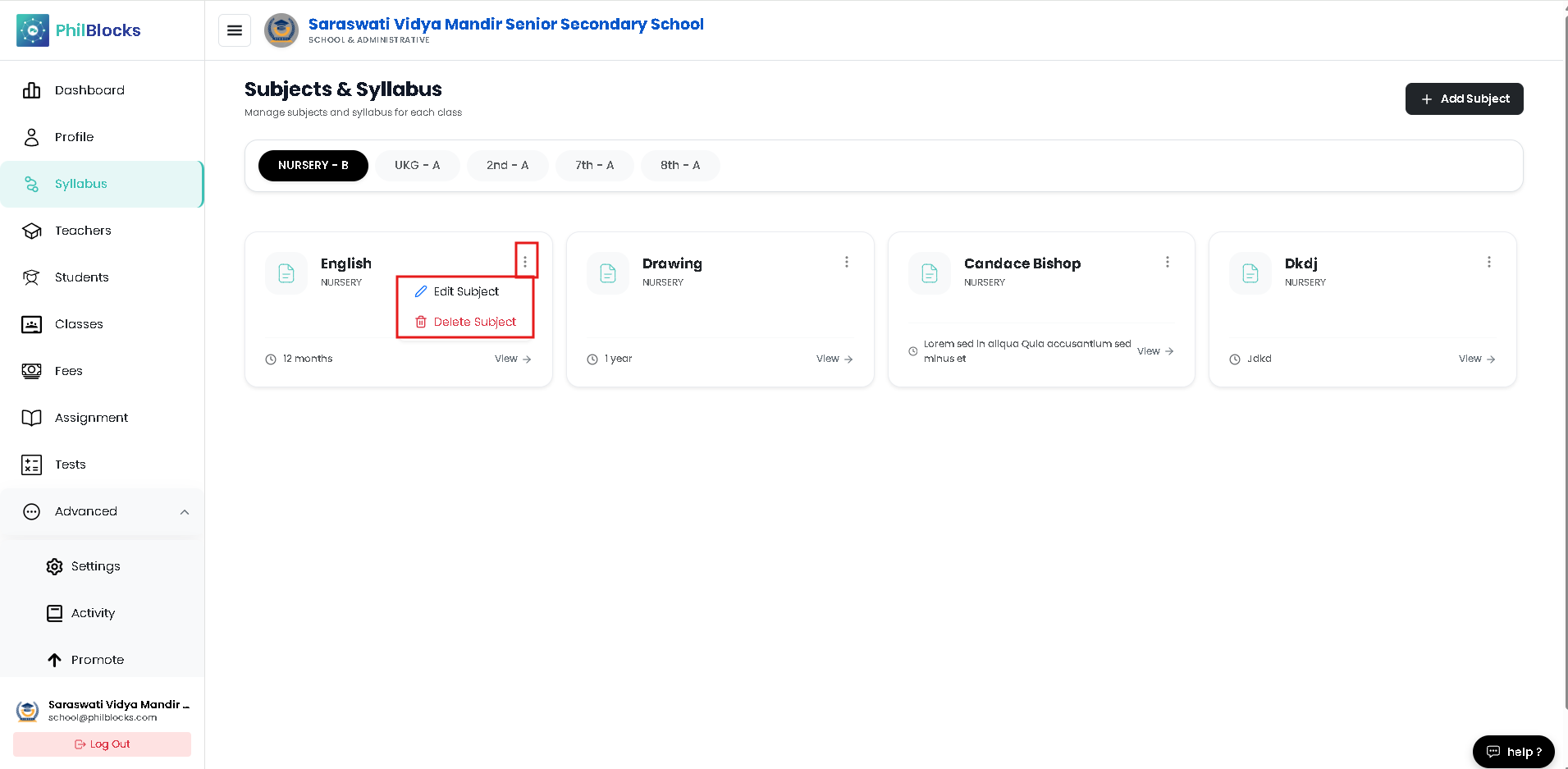 To modify a subject:
Step 1
Open the subject.
Step 2
Select Edit.
Step 3
Update:
- Subject Name
- Duration
- Description
- Assigned Class
Step 4
Save changes.
Deleting a Subject
If a subject is no longer required:
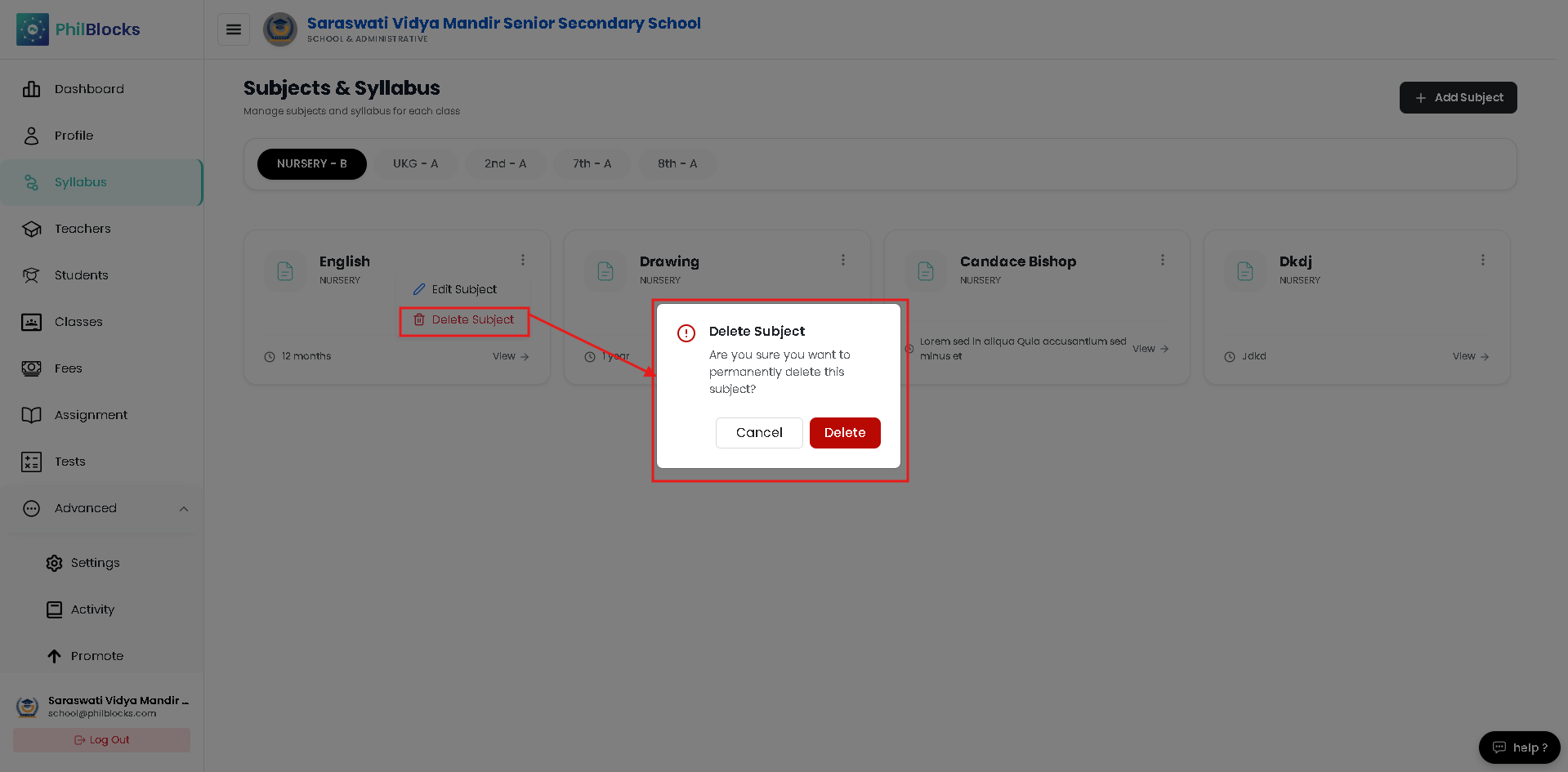
Step 1
Open the subject menu.
Step 2
Select Delete.
Step 3
Confirm deletion.
Deleted subjects and syllabus content may not be recoverable.
Best Practices
✅ Create subjects before assigning teachers
✅ Use meaningful subject descriptions
✅ Organize content chapter-wise
✅ Keep syllabus updated each academic year
✅ Review syllabus before publishing
✅ Download PDF copies for backup
✅ Maintain consistent topic numbering
Frequently Asked Questions
Who can manage subjects and syllabi?
School administrators and authorized academic coordinators.
Can a subject belong to multiple classes?
Create separate subject entries for each class when required.
Can syllabus content be updated later?
Yes. Chapters and topics can be edited at any time.
Can I download the syllabus?
Yes. Use the Download PDF button.
Can topics contain subtopics?
Yes. Chapters can be divided into multiple subtopics for better organization.