Tests & Exams
The Tests & Exams module helps schools schedule assessments, track test status, and manage test details for each class.
This page explains how to view test analytics, recent tests, and all test records.
What you can do
- Monitor tests by status
- Review recent and upcoming exams
- Track assessment progress
Ideal users
- Examination coordinators
- Teachers
- School admins
Tests & Exams Overview
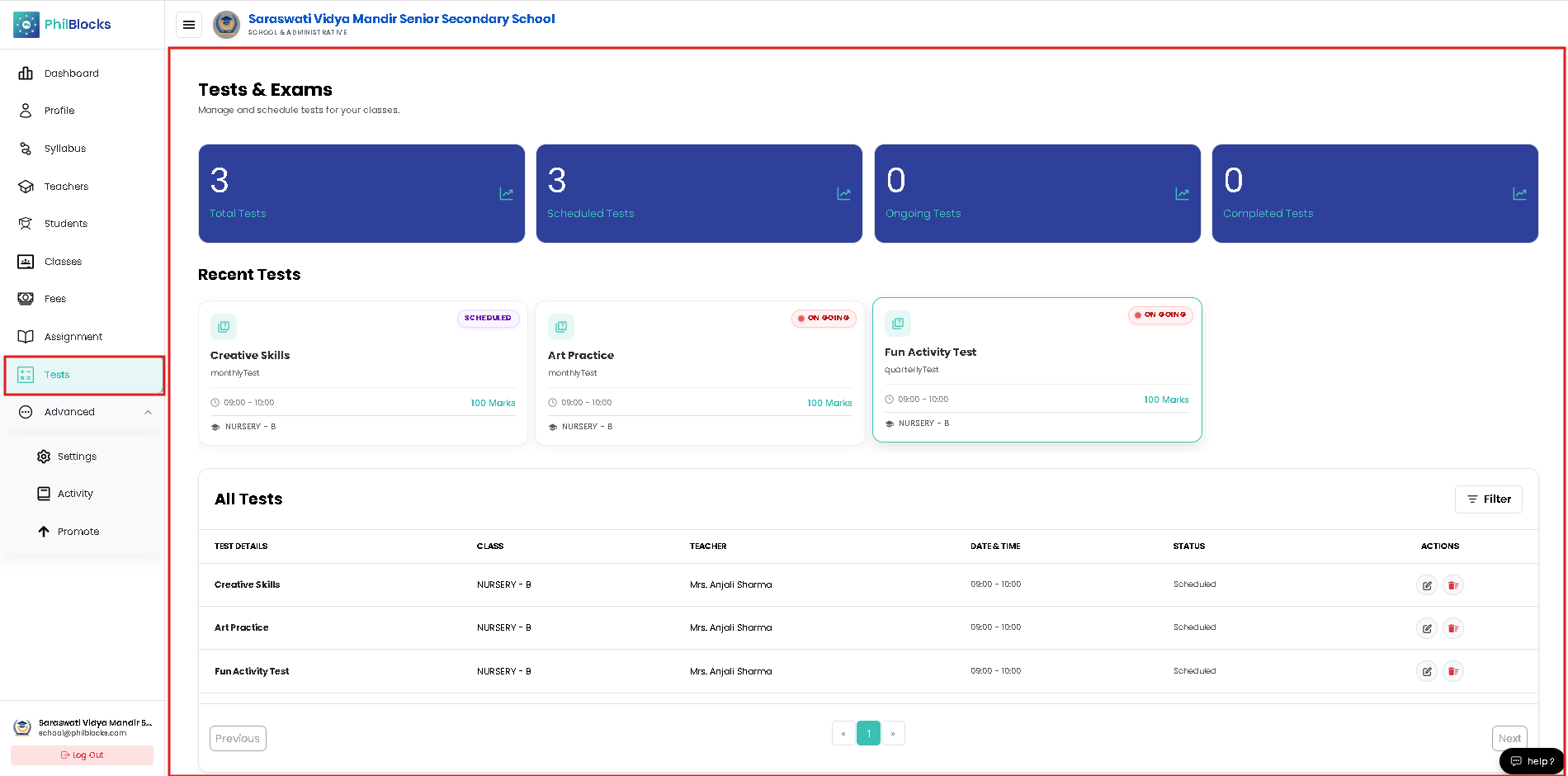 The Tests & Exams dashboard includes:
- Total Tests — the full count of tests created.
- Scheduled Tests — tests planned for future dates.
- Ongoing Tests — currently active assessments.
- Completed Tests — tests that have been finished.
These summary cards help administrators see overall exam progress at a glance.
Recent Tests
The Recent Tests section highlights the most recent or important assessments.
Each recent test card typically shows:
- Test title
- Test type (monthly, quarterly, etc.)
- Time range
- Total marks
- Class and section
- Status badge (Scheduled, Ongoing, Completed)
This section is useful for quickly checking upcoming and current exam activity.
All Tests Table
The All Tests table provides a full list of scheduled assessments.
Common columns include:
- Test Details — name and description of the exam.
- Class — assigned class and section.
- Teacher — test owner or supervisor.
- Date & Time — scheduled exam timeframe.
- Status — current test status.
- Actions — edit or delete the exam.
Use filters to narrow tests by class, status, or date.
Creating a New Test
To add a new test:
- Click the Add button on the Tests page.
- Enter the test title.
- Choose the test type.
- Select the class and section.
- Pick the date and time.
- Set the total marks.
- Save the test.
Test Creation Fields
Title
Enter the name of the test.
Example:
Creative Skills
Test Type
Select the exam type.
Examples:
- monthlyTest
- quarterlyTest
- halfYearlyTest
Class
Choose the class that will take the test.
Teacher
Select the teacher responsible for the test.
Date & Time
Choose the scheduled exam date and start/end time.
Total Marks
Enter the maximum score for the test.
Example:
100
Test Statuses
Tests can have different status states:
- Scheduled — exam is planned and not yet started.
- Ongoing — exam is currently running.
- Completed — exam has finished.
These statuses make it easy to monitor exam progress and take action if needed.
Filtering and Actions
You can filter tests by class, status, and date range.
Action buttons usually include:
- Edit — update test details.
- Delete — remove a scheduled test.
Best Practices
✅ Schedule tests well in advance
✅ Use clear exam names and types
✅ Assign a responsible teacher for each test
✅ Confirm dates and time windows before saving
✅ Maintain accurate status updates
Frequently Asked Questions
Who can create tests?
Teachers and authorized administrators can create new tests.
Can I edit a scheduled test?
Yes. Use the edit action to modify the test details.
How do I mark a test as completed?
Update the status after the exam ends or use the system’s completion workflow.
Can I filter tests by class?
Yes. Use the filter controls to narrow results by class and status.
Related Documentation
- Dashboard Overview
- Class Management
- Student Management
- Teacher Management
- Assignments
Tests & Exams Workflow
Create Test
      │
      ▼
Set Class, Date & Time
      │
      ▼
Choose Marks and Status
      │
      ▼
Save Test
      │
      ▼
Review Recent Tests