🎓 Students Management
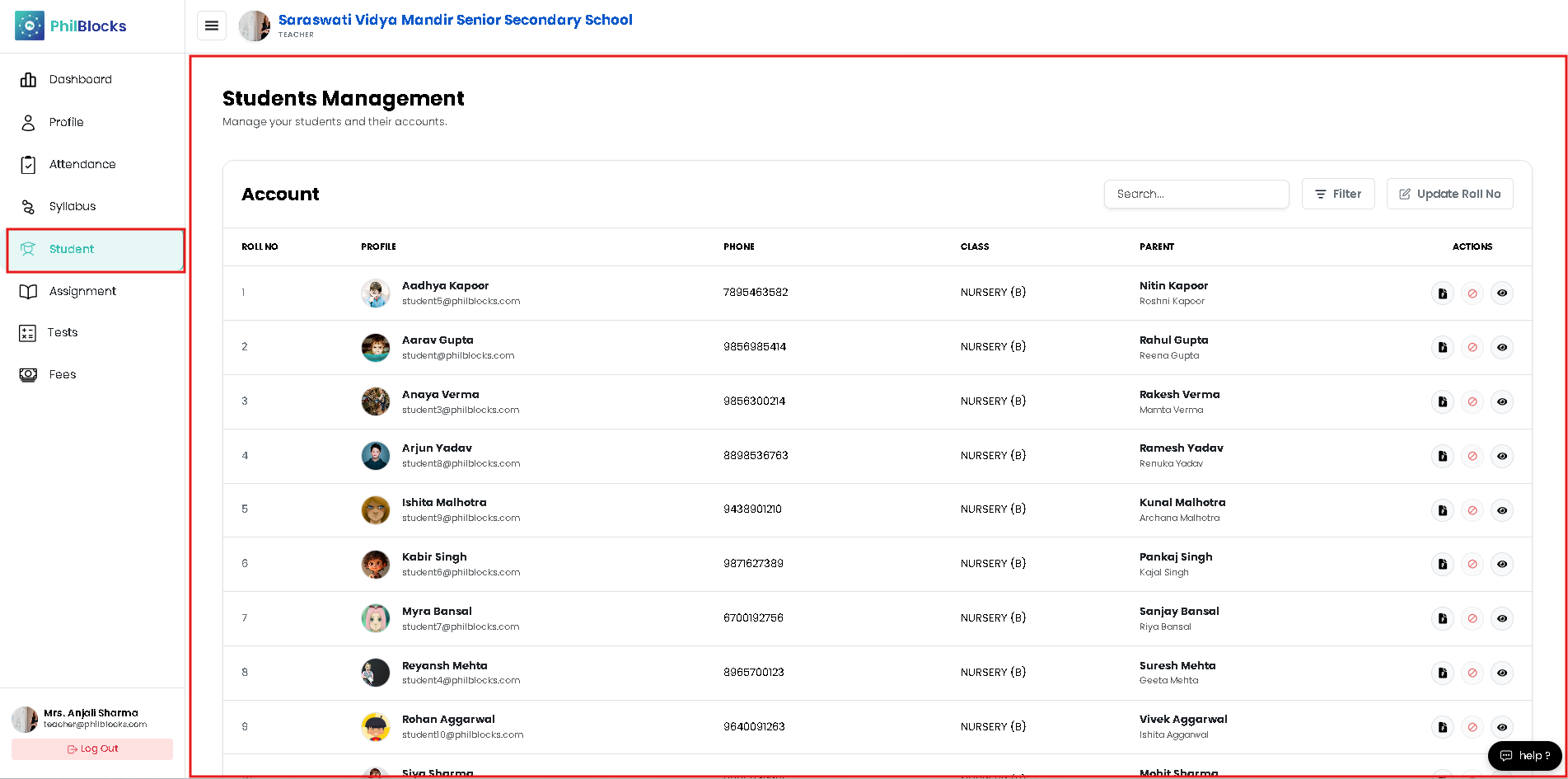
The Students page helps teachers manage student accounts, view student details, and update roll numbers.
Student Table
The page presents a student list with:
- Roll No
- Profile name, email, and avatar
- Phone number
- Class assignment
- Parent details
- Actions to view, edit, or record fees
Search and Filter
- Use the Search box to find students by name or email.
- Use the Filter button to narrow down by class or status.
- The Update Roll No button opens a modal for managing roll number order.
Roll Number Management
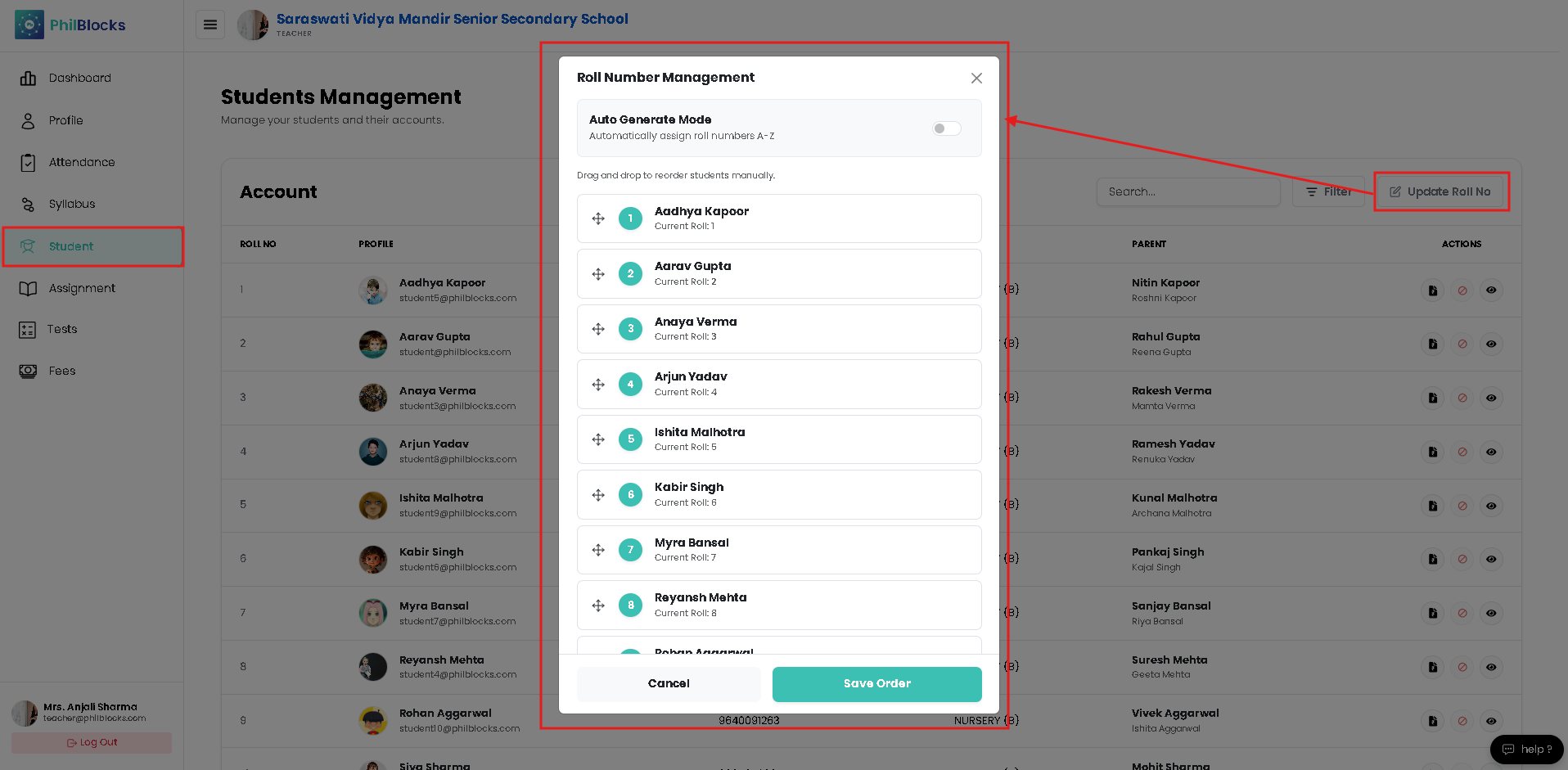
Teachers can reorder roll numbers manually or enable auto-generate mode.
- Drag and drop students to reset the roll sequence.
- Toggle auto-generate to assign roll numbers automatically from A to Z.
- Save the order once the class list is finalized.
Student Actions
Each row provides action icons for:
- View student details in a modal.
- Record fee or payment for the student.
- Disable or manage student account access.
Record fees Modal
The fee recording modal allows teachers to:
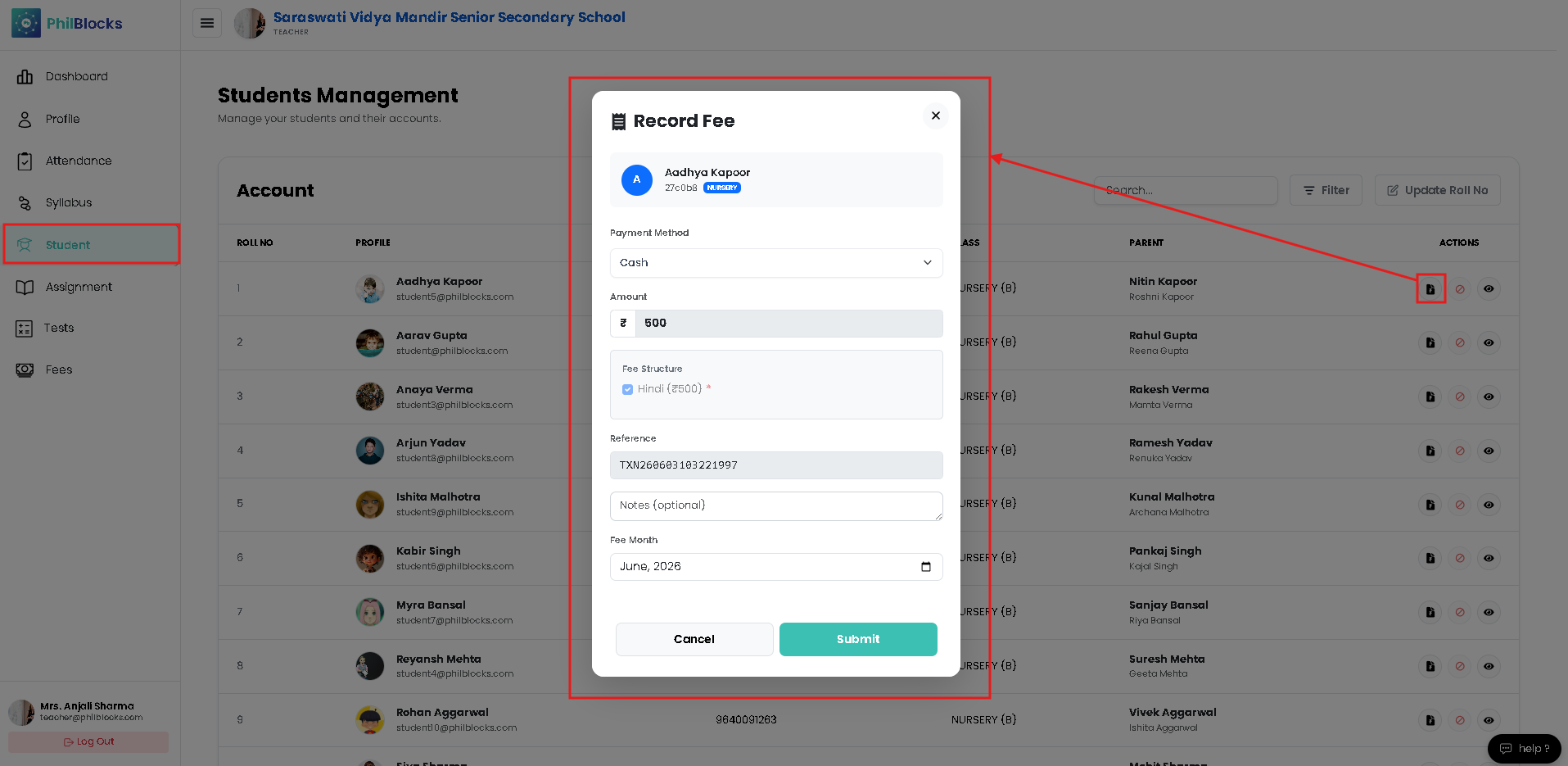
- Select the fee type and amount.
- Add a note or description.
- Record the payment or mark it as pending.
- Save the fee record.
Student Detail Modal
The student detail view includes:
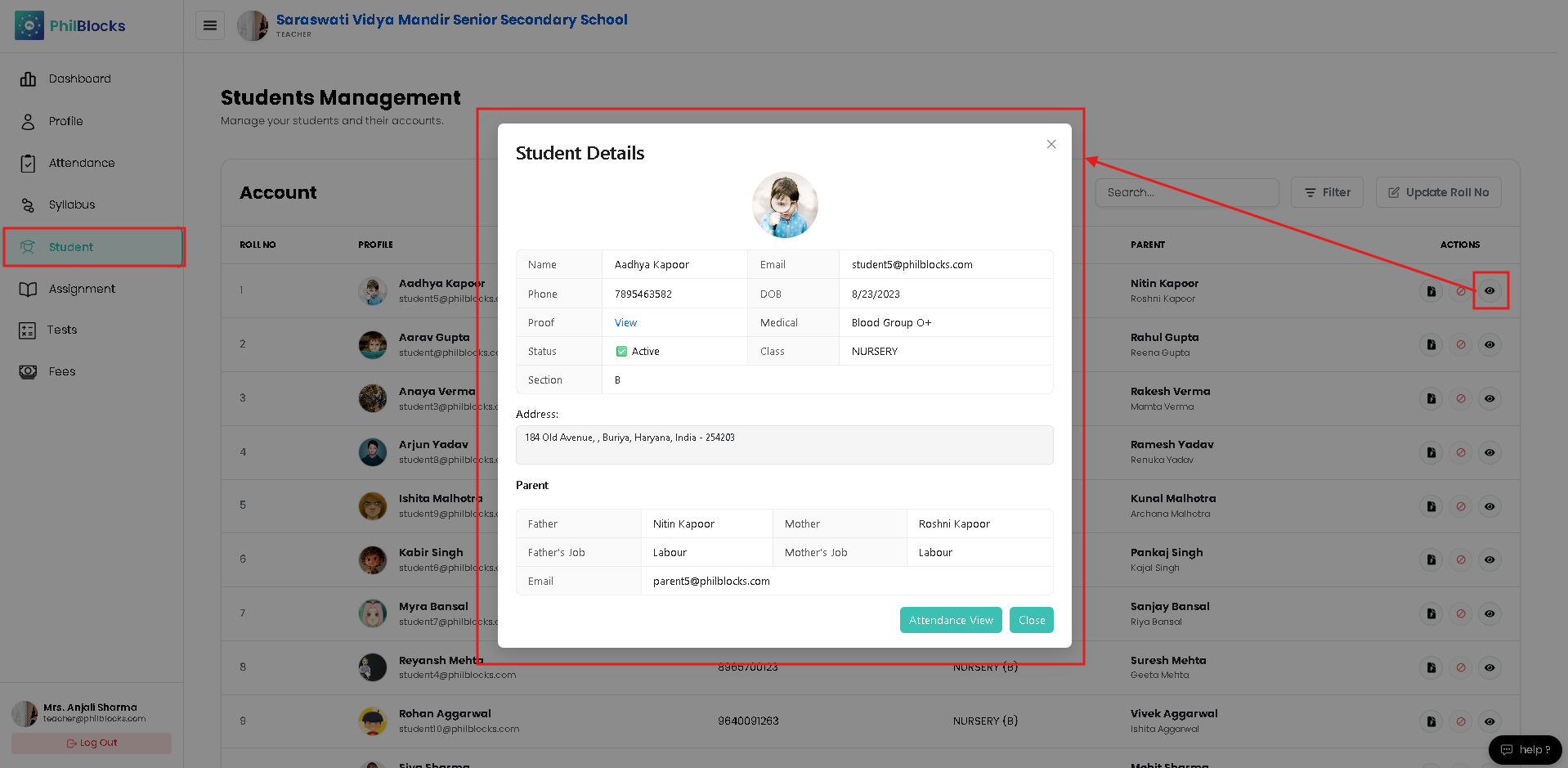
- Name, email, phone, and date of birth
- Student status and class section
- Medical or blood group details
- Parent information and contact emails
- Address and profile photo
How Teachers Use This Page
- Review student records before class or meetings.
- Quickly access parent contact information.
- Keep roll numbers organized for attendance and exams.
- Use the detail modal to see full student profiles without leaving the page.