📚 My Courses & Syllabus
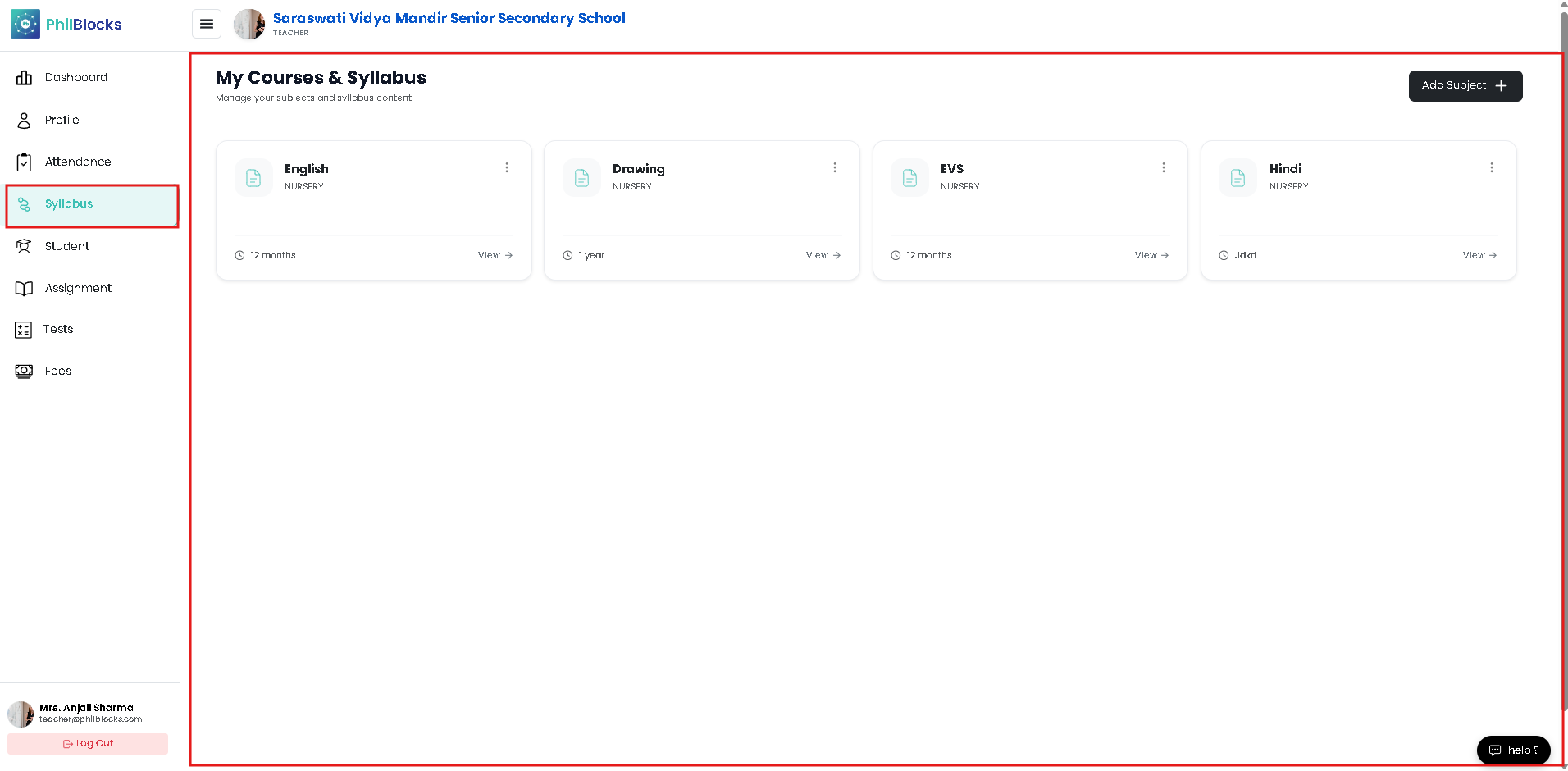
Manage your subjects and syllabus content from the Teacher portal.
Course Cards
Each subject appears as a card with:
- Subject name
- Class / section label
- Duration summary
- View action to open the course details
Cards make it easy to scan your assigned subjects and launch the syllabus content for each course.
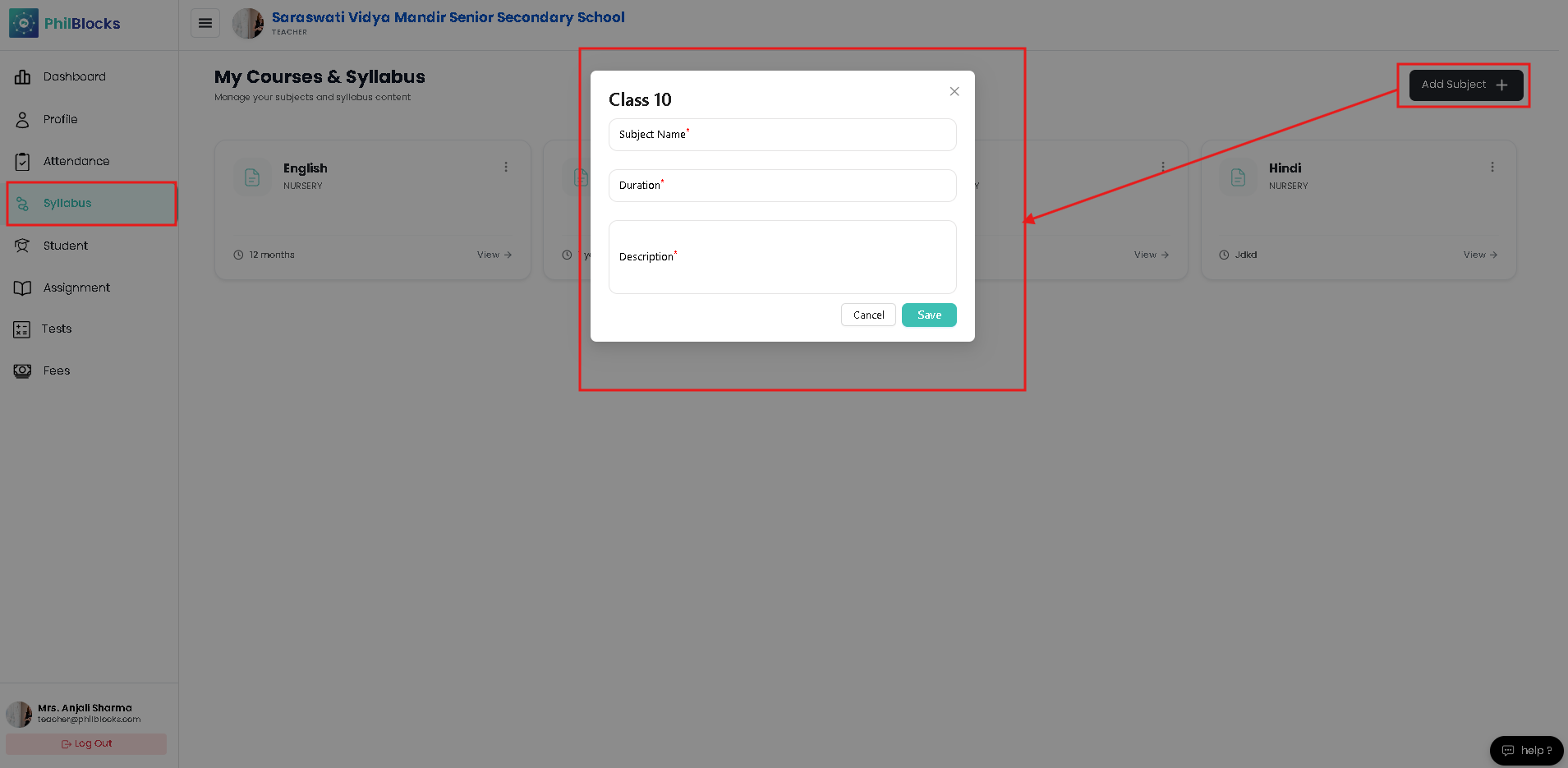
Add Subject
Click Add Subject to create a new course card. The modal includes:
- Subject Name
- Duration
- Description
- Save to add it to your syllabus list
This workflow lets teachers build a course catalog quickly and keep curriculum topics organized.
Subject Details View
When a subject card is selected, the page shows detailed course info:
- Subject title and class badge
- Course description
- Duration and timeline
- Open Course button for deeper syllabus navigation
Use this panel to review subject content before editing or sharing it with students.
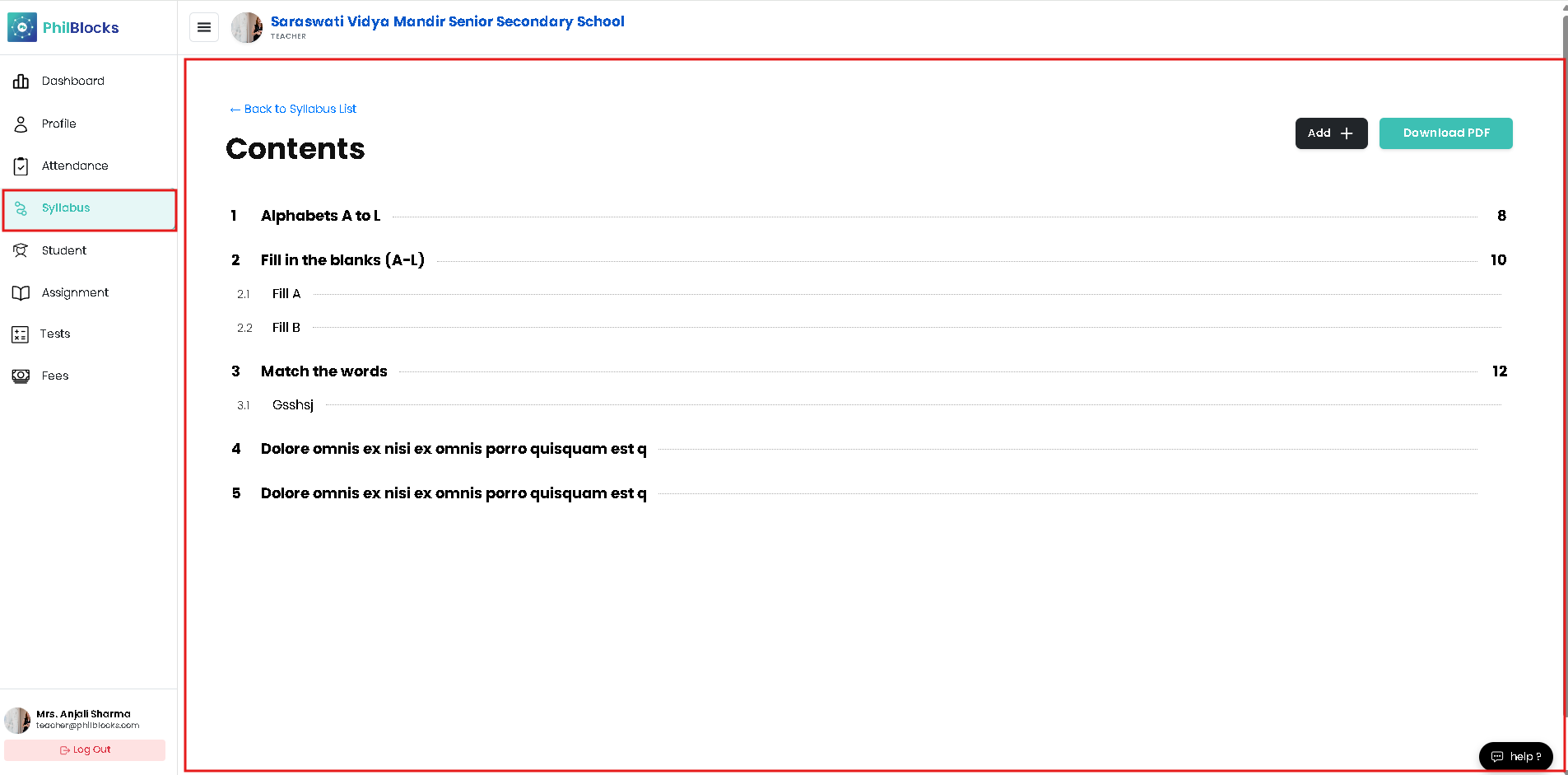
Syllabus Contents Screen
The contents view shows a structured syllabus list with topic headings, subtopics, and page references.
- Contents list of all lessons and activities
- Page numbers or section order on the right
- Add to insert new syllabus items
- Download PDF for sharing or printing
How Teachers Use This Page
- Create subject cards for each class you teach.
- Add and edit syllabus content directly from the course view.
- Organize lessons by topic, duration, and sequence.
- Export a PDF copy of the syllabus for students or parents.